Best Ways to Back Up Photos That You Need to Know

Photos are more than just digital files—they represent memories, milestones, creative work, and personal history. Yet many people still rely on a single device, cloud account, or social media platform to store their photos. This approach is risky. Hardware failures, accidental deletions, malware attacks, account bans, and policy changes can all result in permanent photo loss.
To truly protect your photo library, you need a solid backup plan that combines multiple storage methods. Each backup solution has its strengths and weaknesses, and understanding them helps you choose the best setup for your needs. In this article, we’ll explore the best ways to back up photos that you need to know. We’ll also show you how to combine these methods into a reliable long-term strategy.
1. Back Up Photos With Cloud Storage
Cloud storage services store your photos on remote servers and automatically sync them across devices. Popular options include Google Photos, iCloud, Dropbox, and OneDrive. Once enabled, photos are uploaded in the background and remain accessible from anywhere with an internet connection.
Cloud storage is especially popular for smartphones, as it backs up photos automatically as soon as they’re taken. Many services also include features like face recognition, smart search, and easy sharing, making photo management simple.
Pros:
- Automatic backups with minimal effort
- Accessible from multiple devices and locations
- Off-site storage protects against theft or physical damage
- Easy sharing and syncing
Cons:
- Limited free storage
- Subscription fees for large photo libraries
- Possible photo compression on lower-tier plans
- Dependence on internet speed and service availability
Cloud storage is an excellent first line of defense, but it shouldn’t be your only backup method.
2. Back Up Photos With External Hard Drive or SSD
External hard drives (HDDs) and solid-state drives (SSDs) allow you to store photos locally outside your computer or phone. HDDs offer large storage capacities at lower prices, while SSDs are faster, quieter, and more durable due to having no moving parts.
This method gives you full control over your files and preserves photos in their original quality. You can back up photos manually or use backup software to automate the process on a schedule.

Pros:
- One-time cost with no subscriptions
- Full-resolution photo storage
- Fast access without internet
- Complete control over your data
Cons:
- Physical devices can fail or be damaged
- Risk of loss or theft
- No off-site protection unless stored elsewhere
- Manual backups may be forgotten
External drives are ideal as a second backup layer, especially for large photo collections.
3. Back Up Photos With NAS (Network Attached Storage)
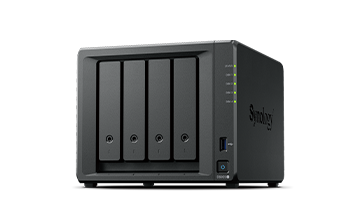
A NAS (Network Attached Storage) is a dedicated storage device connected to your home or office network. It functions like a personal cloud, allowing multiple devices to back up photos automatically to a centralized location.
Many NAS systems support RAID configurations, which protect against drive failure, and offer remote access so you can view your photos outside your home network. NAS solutions are popular among photographers and professionals who manage massive photo libraries.
Pros:
- High storage capacity
- Automatic backups from multiple devices
- RAID protection against hardware failure
- Full data ownership with no monthly fees
Cons:
- High upfront cost
- Requires technical setup and maintenance
- Not truly off-site unless combined with cloud backup
- Power or network outages can affect access
NAS is a powerful solution, but best used alongside cloud or off-site backups.
4. Back Up Social Media Photos Before They’re Gone
Photos stored on social media platforms are not guaranteed to last forever. Accounts can be suspended, hacked, or deleted, and platforms often compress images or remove older content. To avoid losing valuable photos, it’s important to back them up locally. Imaget makes this easy by allowing you to bulk download social media photos in original quality and store them safely on your own devices.
Main Features of Imaget:
- Bulk download photos from all photo hosting websites, including social media.
- Preserve original image quality without compression.
- Filter extracted photos by choosing their formats and resolutions.
- Support downloading in multiple popular platforms, like JPG/PNG/Webp.
- Fast and stable downloading performance on both Windows and Mac.
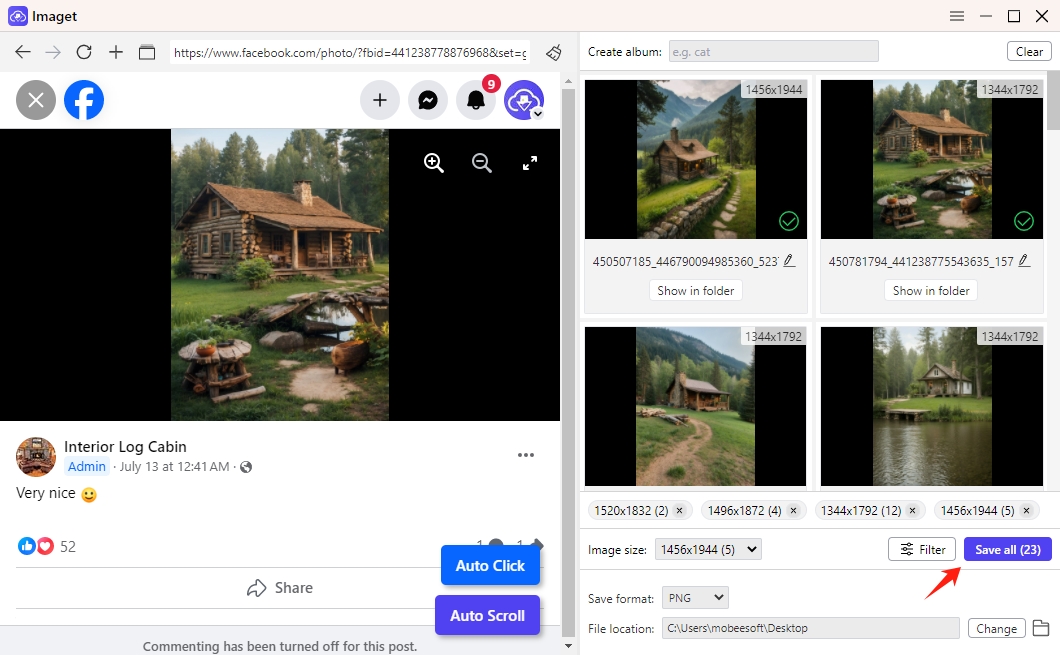
Steps to Use Imaget:
- Download and install Imaget on your Windows or macOS computer.
- Visit the social media inside Imaget, and log in with your account.
- Locate the profile, album, or post you want to back up, then let Imaget analyze the available photos.
- Select the images or albums you want to download, then click the Save all button to save the photos to your preferred backup location.
5. Conclusion
Backing up photos isn’t about relying on one solution—it’s about combining multiple methods for maximum protection. Cloud storage provides convenience and off-site safety, external drives and NAS systems offer full control and original-quality backups, and together they form a strong foundation for long-term photo security.
However, photos stored on social media are especially vulnerable to account issues and platform changes. That’s why using Imaget to bulk download and back up social media photos in original quality is essential. By adding Imaget to your backup strategy, you ensure all your photos—online and offline—are safely preserved and fully under your control.