How to Recover Deleted Photos from iPhone?

Photos stored on an iPhone often carry priceless memories—family moments, travel experiences, work references, or creative inspiration. Unfortunately, it’s easy to accidentally delete photos with a single tap. Whether you cleared your gallery to free up space, mistakenly deleted important images, or lost photos after an iOS update, the panic is real. The good news is that Apple provides several built-in recovery options, and in many cases, deleted photos are not permanently gone right away.
In this guide, we’ll walk you through how to recover deleted photos from an iPhone using some effective methods. At the end, we’ll also share a bonus tip on how to back up iPhone photos to your PC in bulk to prevent future data loss.
1. How to Recover Deleted Photos from iPhone?
Depending on how long ago the photos were deleted and whether you have backups, there are several effective ways to recover them. Start with the simplest methods first.
1.1 Recover Deleted Photos from iPhone “Recently Deleted”
The simplest and most widely used method to recover deleted photos is through the Recently Deleted album. When you delete photos on an iPhone, Apple keeps them for up to 30 days before permanently removing them.
Steps:
Open the Photos app on your iPhone → Tap Collections → Scroll down and open Recently Deleted → Tap Select → Choose the photos you want to restore → Tap Recover.
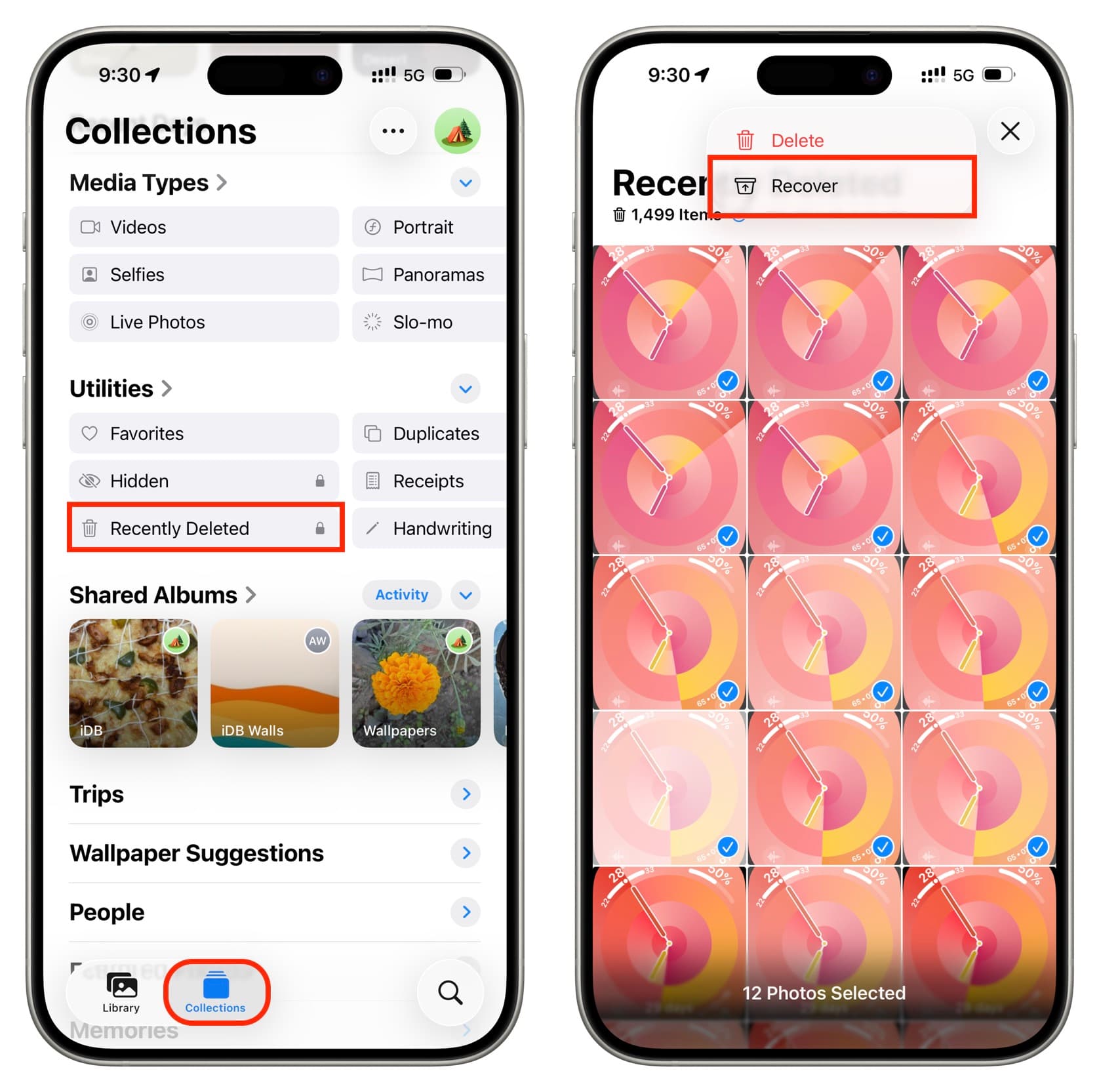
This method is fast, safe, and doesn’t require any backup or external software. However, once the 30-day period expires, photos are permanently deleted from this album.
1.2 Recover Deleted Photos from iCloud Photos
If you have iCloud Photos enabled, your images may still exist in iCloud even if they’re no longer visible on your device.
Steps:
Visit iCloud.com using a browser → Sign in with your Apple ID → Open Photos → Check the Recently Deleted folder → Select the photos and click Recover.
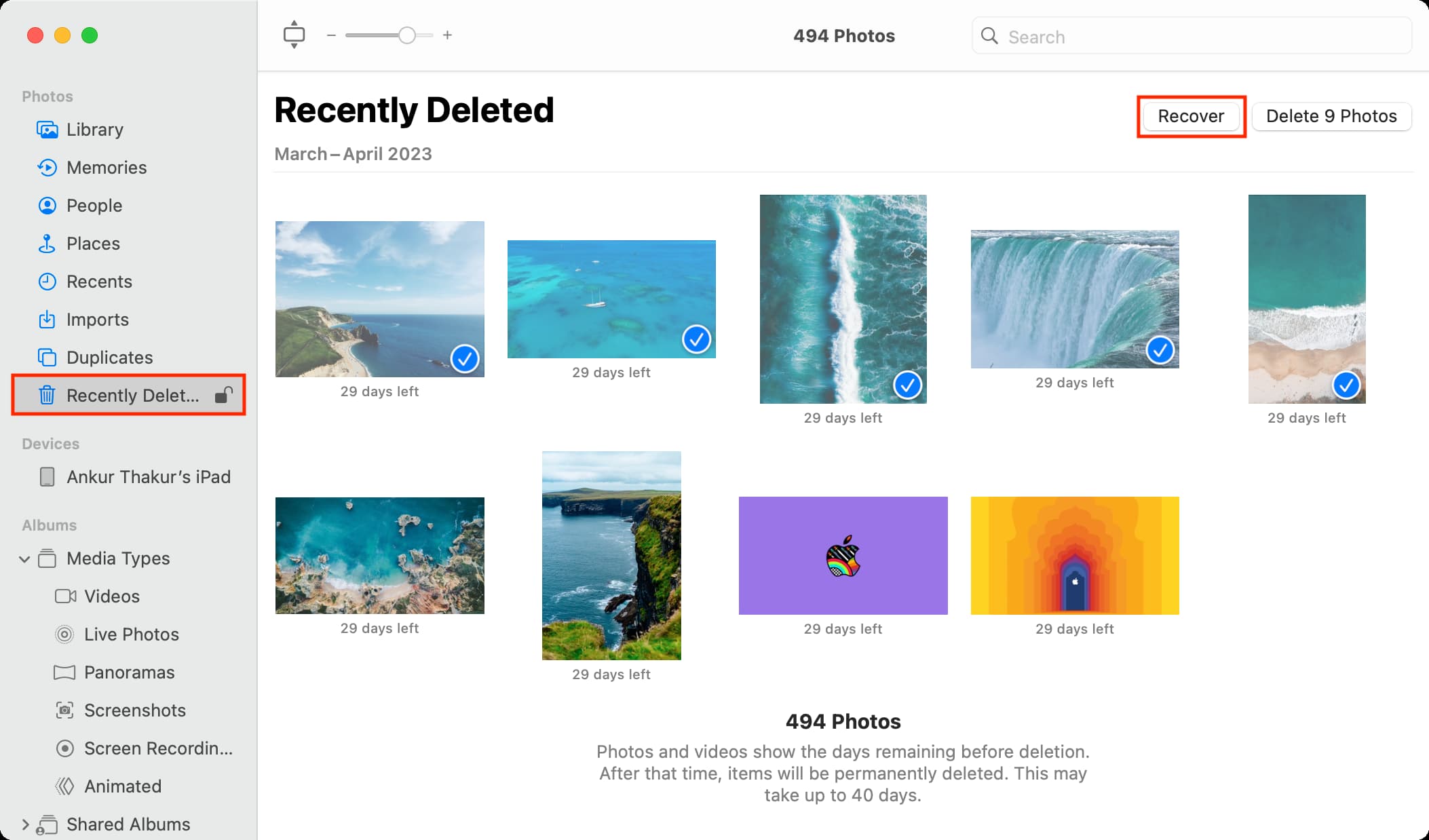
This method works best if iCloud syncing was enabled before the photos were deleted. It also allows you to recover photos without resetting your iPhone.
1.3 Restore Deleted Photos from an iCloud Backup
If your photos are no longer in Recently Deleted, you may be able to restore them from an iCloud backup created before the deletion.
Important: Restoring from a backup will erase current data and replace it with the backup contents.
Steps:
Go to Settings → General → Tap Transfer or Reset iPhone → Choose Erase All Content and Settings → Set up your iPhone again → Select Restore from iCloud Backup → Choose a backup dated before the photos were deleted.
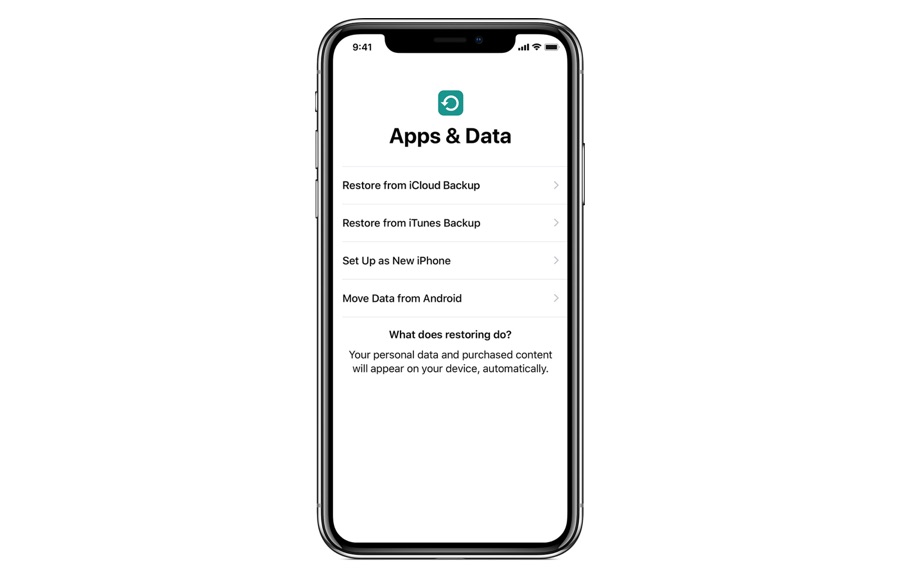
This method is effective but risky if you don’t want to lose newer data.
1.4 Recover Deleted Photos from iTunes or Finder Backup
If you back up your iPhone to a computer, you can recover photos from a local backup.
- For Windows or macOS Mojave and earlier (iTunes):
Connect your iPhone to the computer → Open iTunes → Select your iPhone → Click Restore Backup → Choose the appropriate backup
- For macOS Catalina and later (Finder):
Connect your iPhone → Open Finder → Select your device → Click Restore Backup
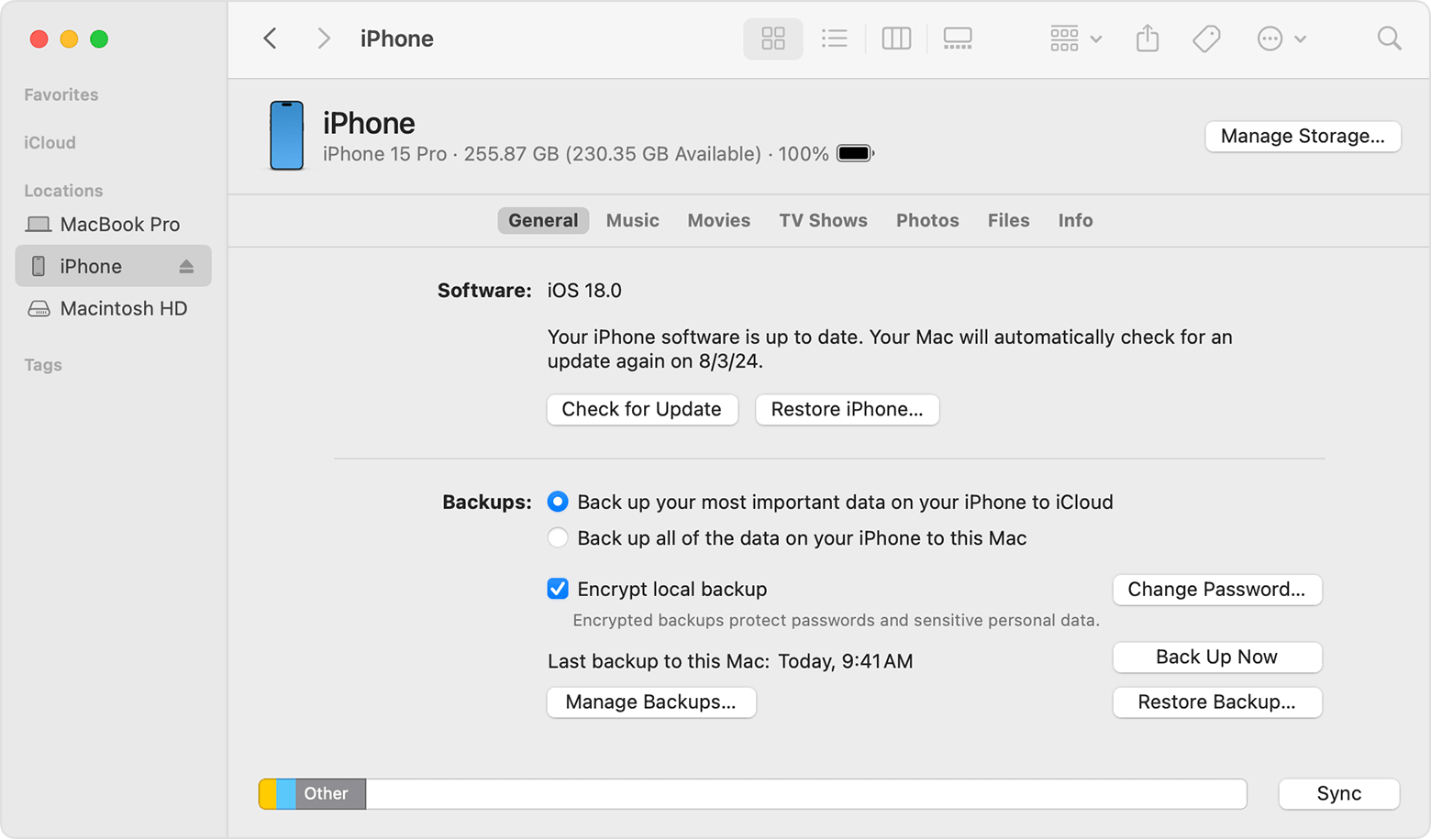
Like iCloud restores, this replaces current data on your iPhone.
1.5 Use iPhone Data Recovery Software (Advanced Option)
If:
- Photos are permanently deleted
- You don’t want to reset your iPhone
- You want to recover photos selectively
Third-party iPhone data recovery tools can help. These tools scan iPhone storage, iCloud backups, or iTunes backups and allow you to preview recoverable photos before restoring them.
General process:
- Install a trusted iPhone recovery tool (like Tenorshare UltData) on your PC or Mac
- Connect your iPhone via USB
- Scan for deleted photos
- Preview and recover selected images
Recovery success depends on whether the deleted data has been overwritten, so acting quickly improves results.
2. Bonus Tip: Back Up iPhone Photos on PC with Imaget
Recovering photos is stressful—preventing photo loss is far better. One of the smartest ways to protect your iPhone photos is to back them up regularly to your PC. That’s where Imaget, a professional bulk image downloader, comes in.
Why Back Up iPhone Photos to a PC?
- Avoid data loss from accidental deletion
- Free up iPhone storage
- Keep original-quality images offline
- Manage and organize photos more easily
Imaget allows you to download and back up photos in bulk from online sources and cloud-based platforms, making it ideal for users who store photos online and want a reliable local backup.
Key benefits of Imaget:
- Bulk photo downloading with one click
- Supports full-resolution photo downloads
- Useful filters to choose desired photos
- Preserves original filenames and quality
- Download photos in original or popular JPG/PNG/WebP formats
- Available for both Mac and Windows
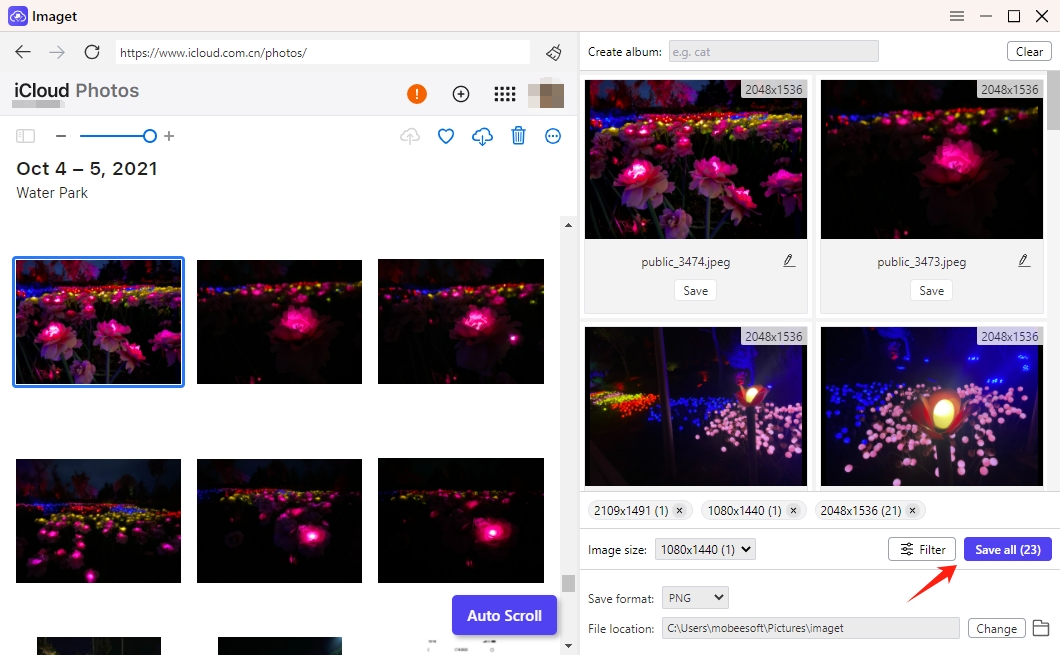
How to use Imaget:
- Download the latest Imaget installer for your Mac/Windows and complete the installation.
- Launch Imaget, log in to iCloud, and navigate to iCloud Photos, where Imaget will auto-scroll to extract images.
- Select your photos, customize the output format and location, and start downloading.
3. Conclusion
Losing iPhone photos doesn’t always mean they’re gone forever. In many cases, you can recover deleted photos using the Recently Deleted album, iCloud, or device backups. Even when standard methods fail, advanced recovery tools may still offer a chance to restore your images.
However, the most reliable solution is prevention. Regularly backing up your photos ensures that you never have to worry about accidental deletion again. With its powerful bulk image downloading capabilities, Imaget makes it easy to store high-quality photo backups on your PC quickly and efficiently.
If you want peace of mind, better photo management, and long-term protection for your images, Imaget is a highly recommended tool for safeguarding your photo collection before data loss happens.