
After installing ImgHunt – Bulk Image Downloader, its icon will appear in your browser toolbar, and you may need to grant permission for it to access webpage content.
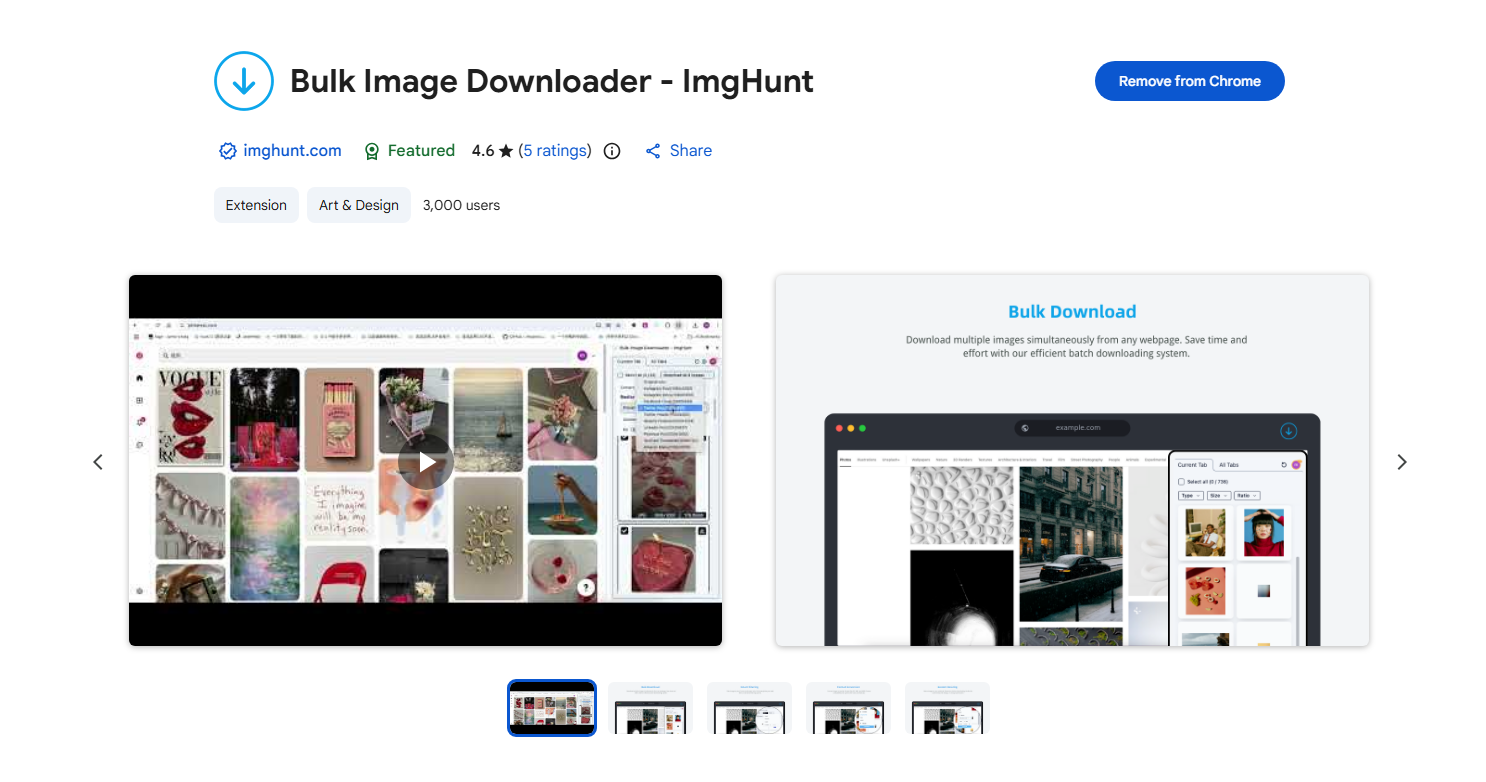
In today’s visual-driven digital world, images play a crucial role in marketing, content creation, research, design, and social media management. Whether you’re a blogger collecting reference materials, a digital marketer gathering product photos, or a designer sourcing inspiration, downloading images one by one can be time-consuming and inefficient. That’s where bulk image downloaders come into play.
One tool that has gained attention among users who frequently download images is ImgHunt – Bulk Image Downloader. Designed to streamline the process of collecting multiple images from websites, ImgHunt offers a convenient way to save large batches of images in just a few clicks.
In this guide, we’ll explore what ImgHunt is, how to use it step by step, as well as compare it’s pros and cons.
ImgHunt – Bulk Image Downloader is a browser-based tool (typically available as an extension) that allows users to detect and download multiple images from a webpage at once. Instead of manually right-clicking and saving each image, ImgHunt scans the page, identifies available images, and lets you select which ones to download in bulk.
Key Features of ImgHunt:
ImgHunt is particularly useful for downloading images from blogs, portfolios, online galleries, and product pages. It simplifies repetitive tasks and saves significant time compared to manual downloading.
Using ImgHunt is straightforward, below is a step-by-step guide to help you get started.
Step 1: Install the Extension
First, install ImgHunt – Bulk Image Downloader from your browser’s extension store (such as Chrome Web Store or a compatible marketplace).
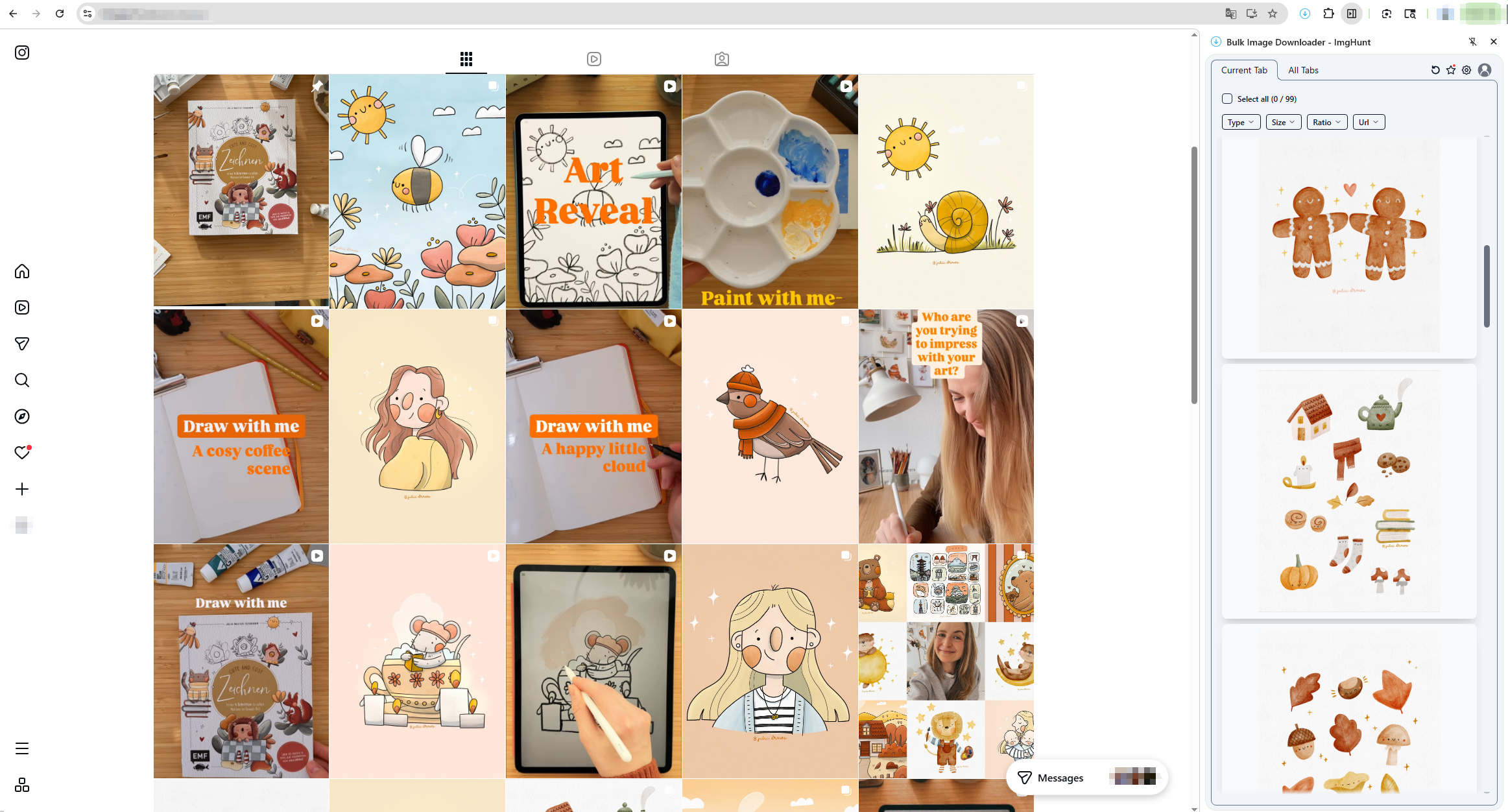
Step 2: Visit the Target Webpage & Launch ImgHunt
Click the ImgHunt – Bulk Image Downloader icon in your browser toolbar, and the extension will automatically scan the page, detect all available images, and display them in a preview grid.
Depending on the page size, this may take a few seconds.
Step 3: Select & Download Images
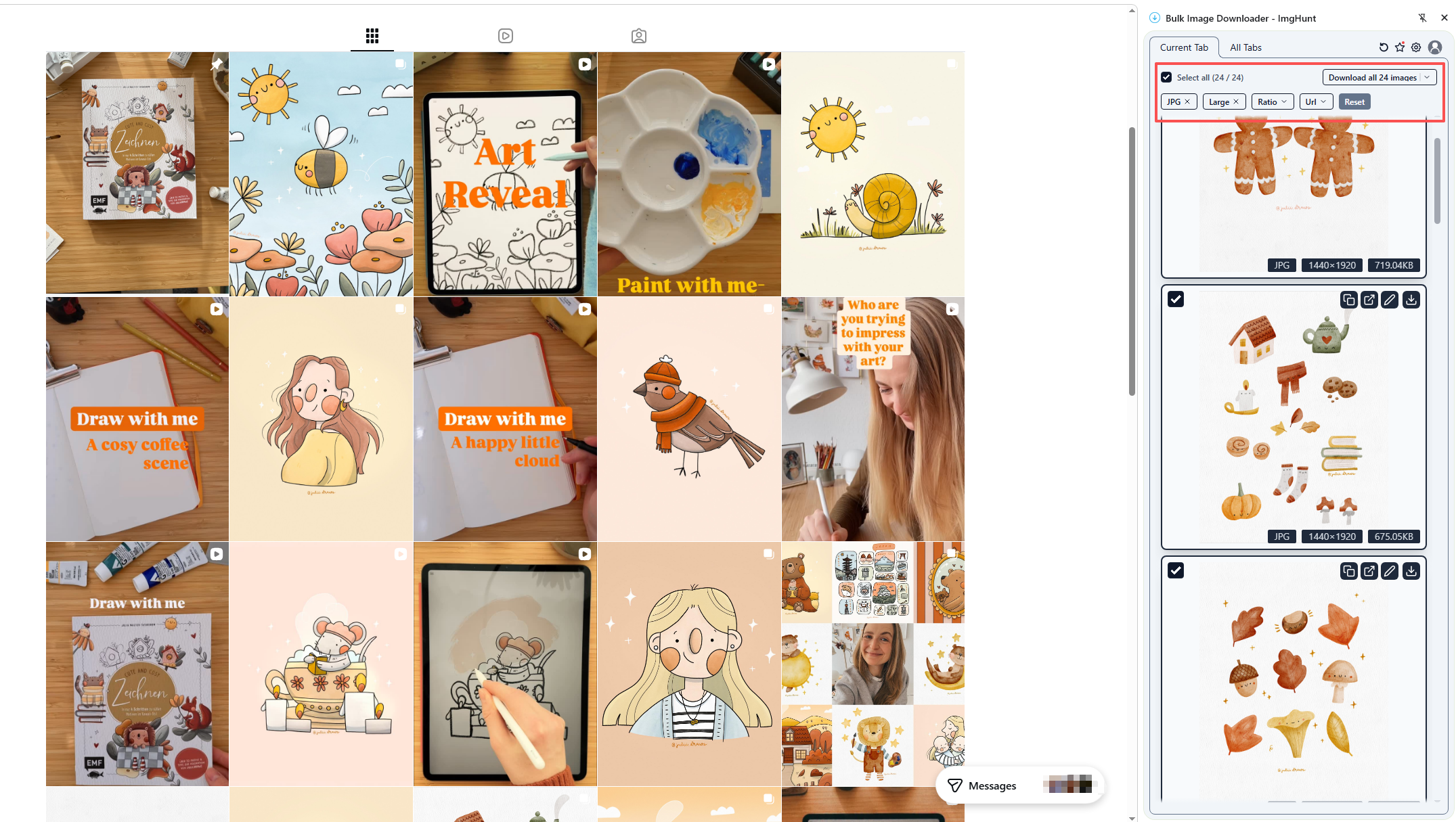
Once the scan is complete, you can:
Select individual images manually or use a “Select All” option if you want everything.
After selecting the desired images:
Pros:
Cons:
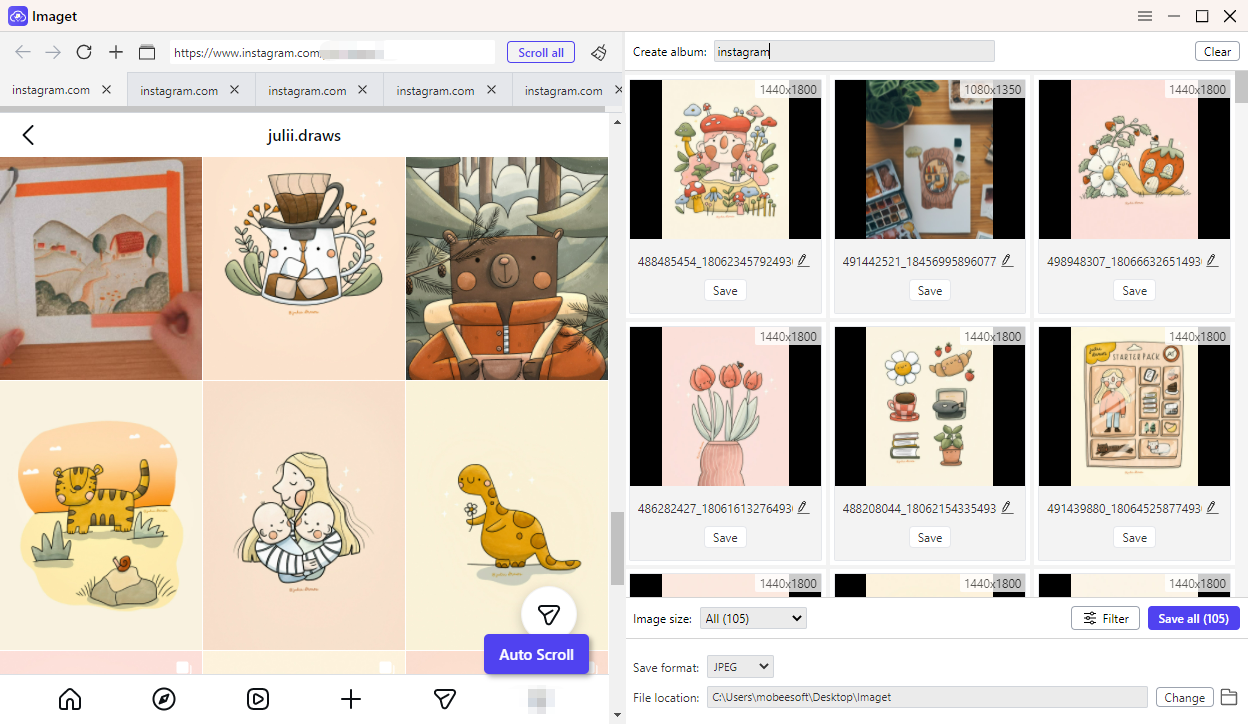
If you need a more powerful and reliable solution, Imaget stands out as a professional-grade alternative to ImgHunt.
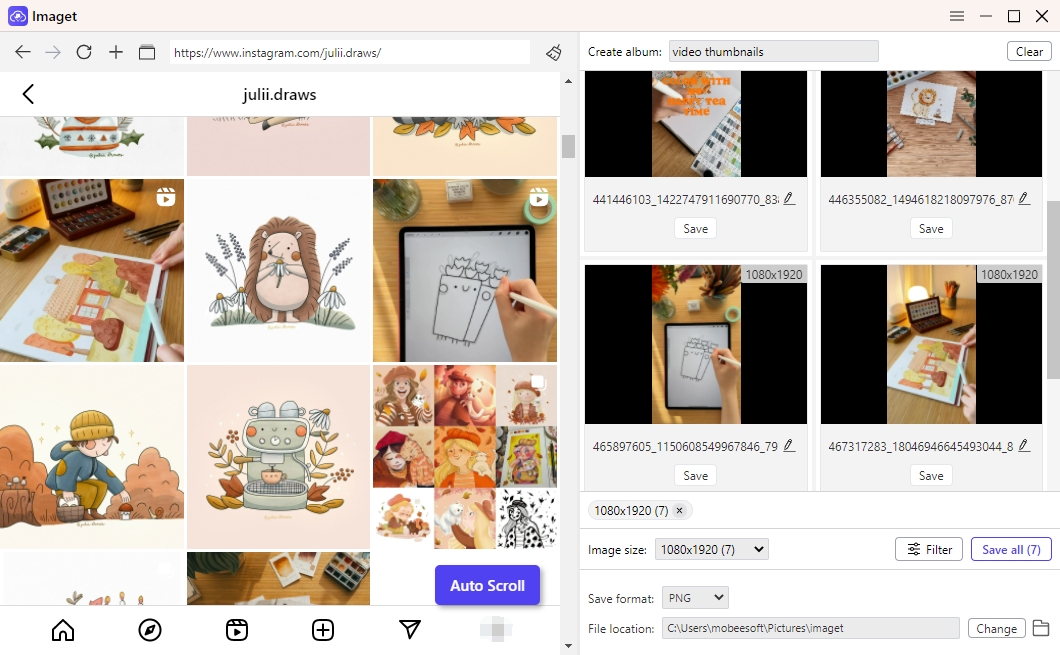
Unlike browser extensions, Imaget is a dedicated desktop bulk image downloader built for speed, stability, and advanced control.
Why choose Imaget over ImgHunt?
How to Use Imaget for Bulk Image Downloading:
Overall, ImgHunt – Bulk Image Downloader is a convenient and beginner-friendly tool for quickly collecting images from a single webpage. Its simple interface, automatic detection, and one-click ZIP download make it a practical solution for casual users who only need basic bulk downloading features.
However, as your needs grow—whether you’re handling multi-page galleries, downloading from multiple URLs, or managing large image collections—browser-based tools can quickly show their limitations in speed, stability, and flexibility.
For users who require stronger performance, advanced filtering, URL list support, and better file organization, Imaget is a more powerful and professional solution. With its desktop-based engine and enhanced bulk downloading capabilities, Imaget provides a smoother, faster, and more reliable experience for serious image collectors.
If you only need occasional downloads, ImgHunt may be enough. But for efficient, large-scale image downloading and long-term productivity, Imaget is the smarter choice.