How to Delete Instagram Pictures?

Instagram is a visual platform where photos define your personal brand, memories, and online identity. Over time, however, your profile may no longer reflect who you are today. Old pictures, low-quality uploads, or posts you regret sharing can clutter your feed and affect how others perceive your account. Whether you’re refreshing your profile, protecting your privacy, or cleaning up outdated content, knowing how to delete Instagram pictures is essential.
While deleting a single Instagram photo is simple, things can get confusing when dealing with posts that contain multiple images or when you want to delete many pictures at once. Instagram’s built-in tools have limitations, especially when it comes to bulk deletion. Additionally, once photos are deleted, they’re gone forever unless you’ve saved a backup.
In this guide, you’ll learn how to delete Instagram pictures in a post, how to remove multiple pictures from Instagram, and how to safely back up all your Instagram photos in one click before deleting anything.
1. How to Delete Instagram Pictures in a Post?
Deleting a single Instagram picture from your profile is straightforward, whether it’s a standalone post or part of a carousel (a post with multiple images).
1.1 Deleting a Single-Image Instagram Post
If the post contains only one image, deleting it removes the entire post.
Steps (Mobile App):
- Open the Instagram app and log in, thengo to your profile by tapping your profile picture.
- Press the photo you want to delete, then tap the three-dot menu (⋮) in the top-right corner, next select Delete and confirm.
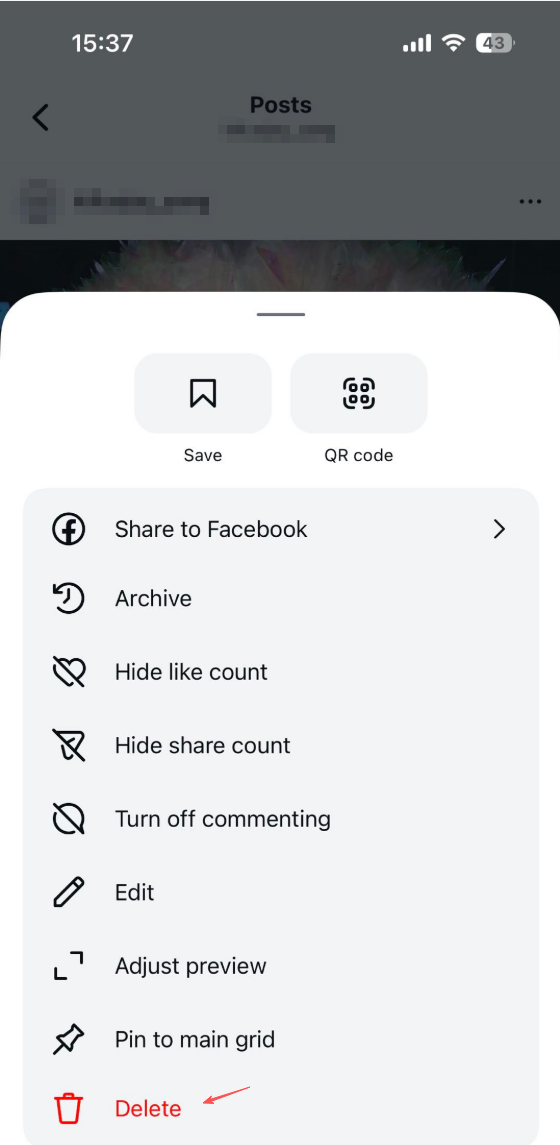
The photo will be permanently removed from your profile and Instagram servers.
1.2 Deleting Pictures from a Multi-Image (Carousel) Post
Instagram allows you to delete individual pictures from a carousel post without deleting the entire post—as long as at least one image remains.
Steps to delete a picture from a carousel post:
- Open Instagram and go to your profile.
- Tap the carousel post you want to edit.
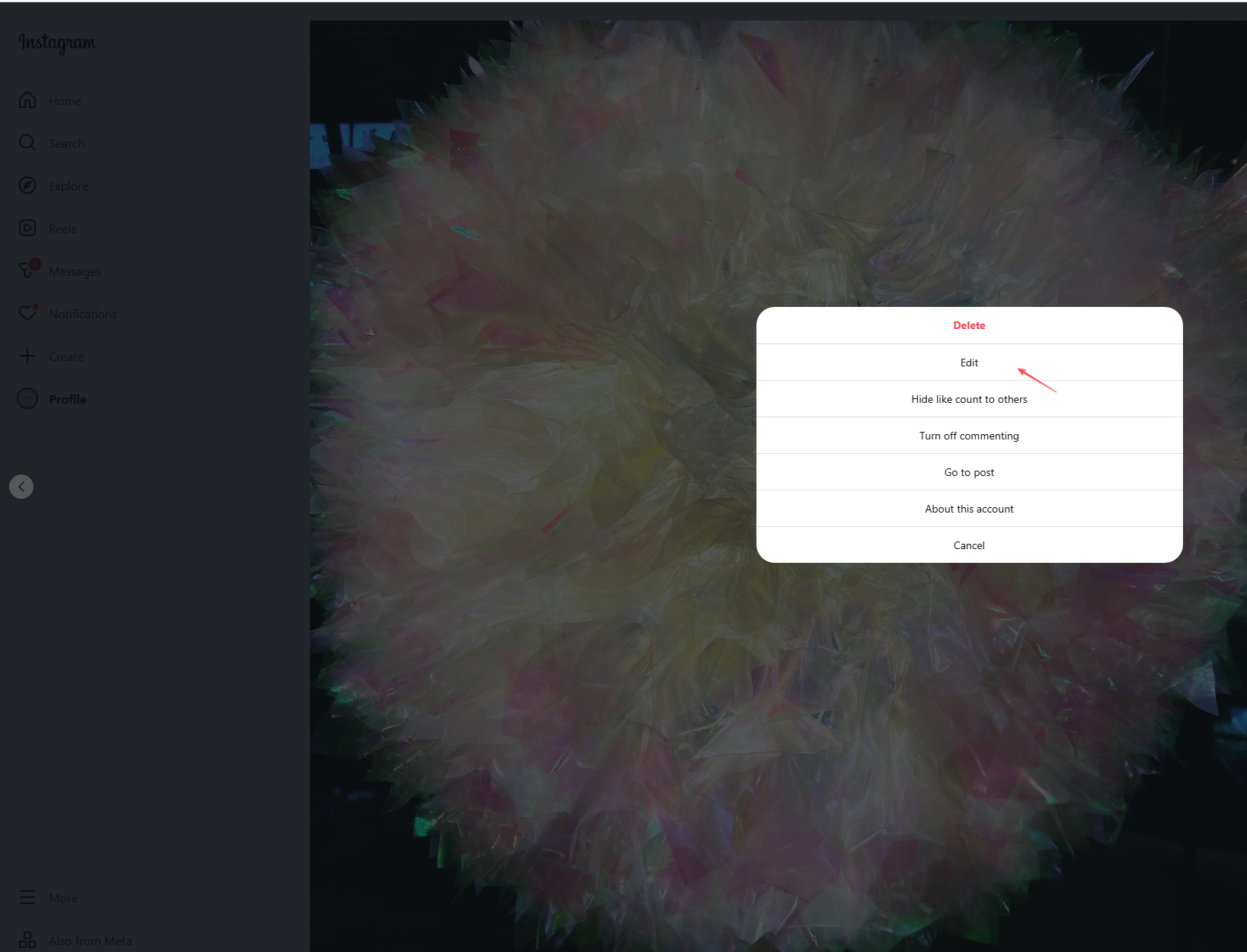
- Tap the three-dot menu (⋮) and choose Edit.
- Swipe to the image you want to remove.
- Tap the trash can icon in the top-left corner, and confirm deletion.
2. How to Delete Multiple Pictures from Instagram?
Many users want to delete multiple Instagram pictures at once, especially when cleaning up old accounts. Unfortunately, Instagram does not currently offer a native bulk delete feature. However, there are still a few ways to manage multiple deletions.
2.1 Manually Delete Multiple Pictures (Official Way)
This approach is the most secure, though it does require patience and time.
Go to your Instagram profile > Open a photo > Tap the three-dot menu and select Delete > Repeat the process for each picture.
This method works on both mobile and desktop, but it’s inefficient for accounts with many posts.
2.2 Use “Archive” Instead of Deleting
If your goal is to clean up your profile without permanently losing photos, archiving is a great alternative.
Benefits of archiving:
- Photos are hidden from your profile
- Likes and comments are preserved
- You can restore photos anytime
To archive a photo:
Open the post > Tap the three-dot menu > Select Archive.
3. Things to Consider Before Deleting Multiple Instagram Pictures
- Deletion is permanent – Instagram does not offer a recycle bin.
- No bulk delete tool – Each photo must be deleted individually.
- Engagement data may be lost – Likes and comments disappear when a post is deleted.
- External links may break – Embedded Instagram posts on websites will no longer work.
Because of these risks, backing up your photos before deleting is highly recommended.
4. Bonus: One-Click Back Up All Instagram Pictures with Imaget Before Deleting
Before deleting single or multiple Instagram pictures, it’s smart to create a complete backup of your content. This ensures you don’t lose valuable memories, professional work, or high-resolution originals. Manually saving photos one by one is inefficient—this is where Imaget becomes essential.
Imaget is a powerful bulk image downloader designed for Instagram and other image-based platforms. It allows users to download all Instagram pictures from a profile quickly and in original quality with minimal effort.
Why Use Imaget Before Deleting Instagram Pictures:
- One-click backup of all Instagram pictures
- Original resolution and quality preserved
- Support large profiles with thousands of pictures
- Useful filters to choose desired pictures
- Save pictures in original or popular JPG/PNG formats
- Save time compared to manual downloads
How to Back Up All Instagram Pictures Using Imaget:
- Install Imaget on your Windows or macOS computer.
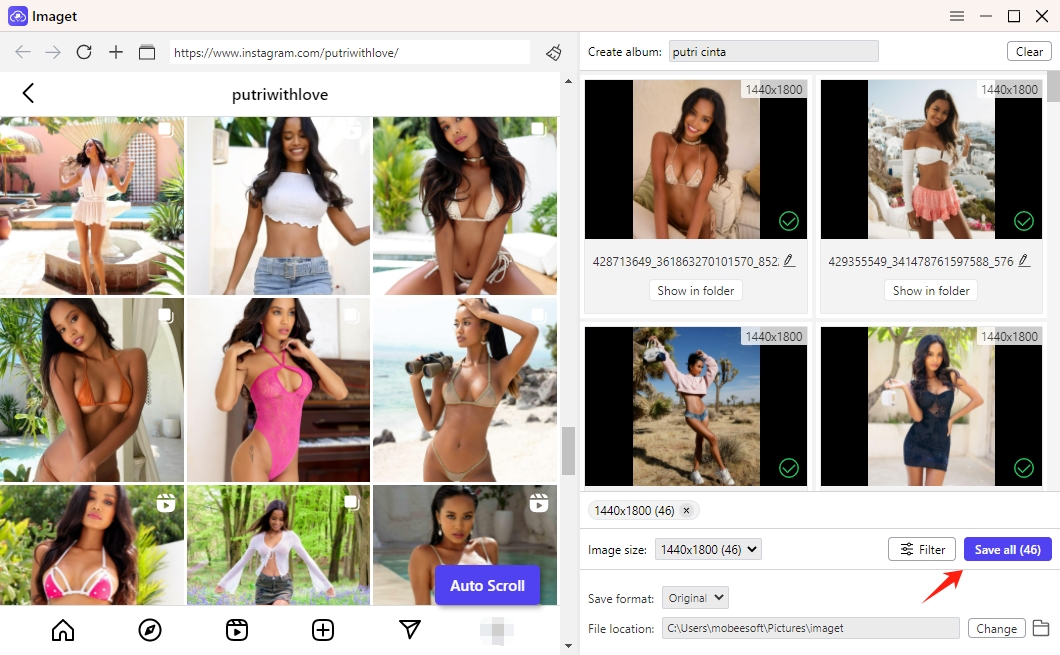
- Use Imaget’s built-in browser to securely log in to your Instagram account, then open your profile page.
- Scroll the page to make Imaget detect all photos on your profile, including carousel images.
- Choose to download all Instagram pictures or select specific posts.
- Click Save all, and Imaget saves all images to your computer in full quality.
5. Conclusion
Deleting Instagram pictures—whether from a single post, a carousel, or across your entire profile—is an effective way to refresh your account and regain control over your content. While Instagram makes it easy to delete individual photos, the lack of a bulk delete feature means users must proceed carefully, especially when removing multiple images.
That’s why backing up your Instagram photos before deleting is crucial. Imaget offers a fast, reliable, and one-click solution to save all your Instagram pictures in original quality. Once your backup is complete, you can confidently delete unwanted photos, reorganize your profile, or start fresh without fear of permanent loss.
For anyone preparing to clean up their Instagram account, Imaget is the most reliable tool to use before removing any content.