How to Download .jpg_orig Images?

If you often save images from social platforms—especially Twitter (now known as X)—you’ve probably encountered strange-looking files ending in “.jpg_orig.” At first glance, this naming format can be confusing. Some users wonder whether the file is corrupted, a different type of image, or something that requires special software to open. In reality, .jpg_orig images are simply the highest-quality JPEG versions of pictures stored online, typically representing the original resolution of the upload before the platform compresses or resizes it.
Downloading these original-quality images can be simple in some cases and unexpectedly tricky in others, depending on the website, browser, and tools you use. This guide walks you through the effective solutions to download .jpg_orig images.
1. What Are .jpg_orig Images?
The “.jpg_orig” format originates primarily from Twitter/X, which stores several versions of uploaded images. For instance:
- name=small → low resolution
- name=medium → mid-resolution
- name=large → HD version
- name=orig → original full-resolution upload
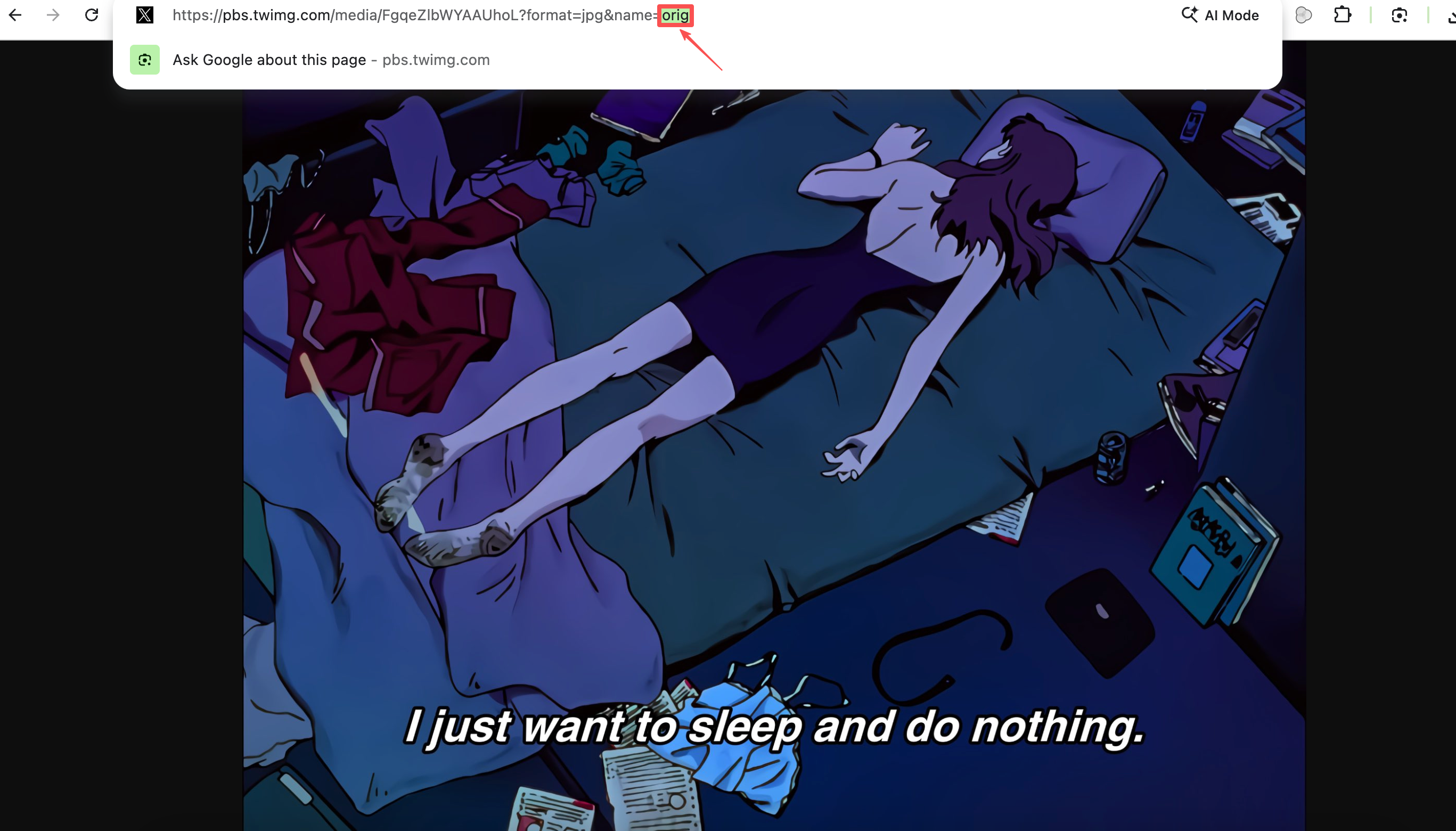
When you open a Twitter/X image in a new tab, the URL often looks like this:
https://pbs.twimg.com/media/XXXXX?format=jpg&name=orig
Some browsers save the file using the URL parameter as a literal filename such as:
image.jpg_orig
Other platforms, tools, and servers may use tags like _orig, _original, or _fullres to indicate that the image is stored at its original quality.
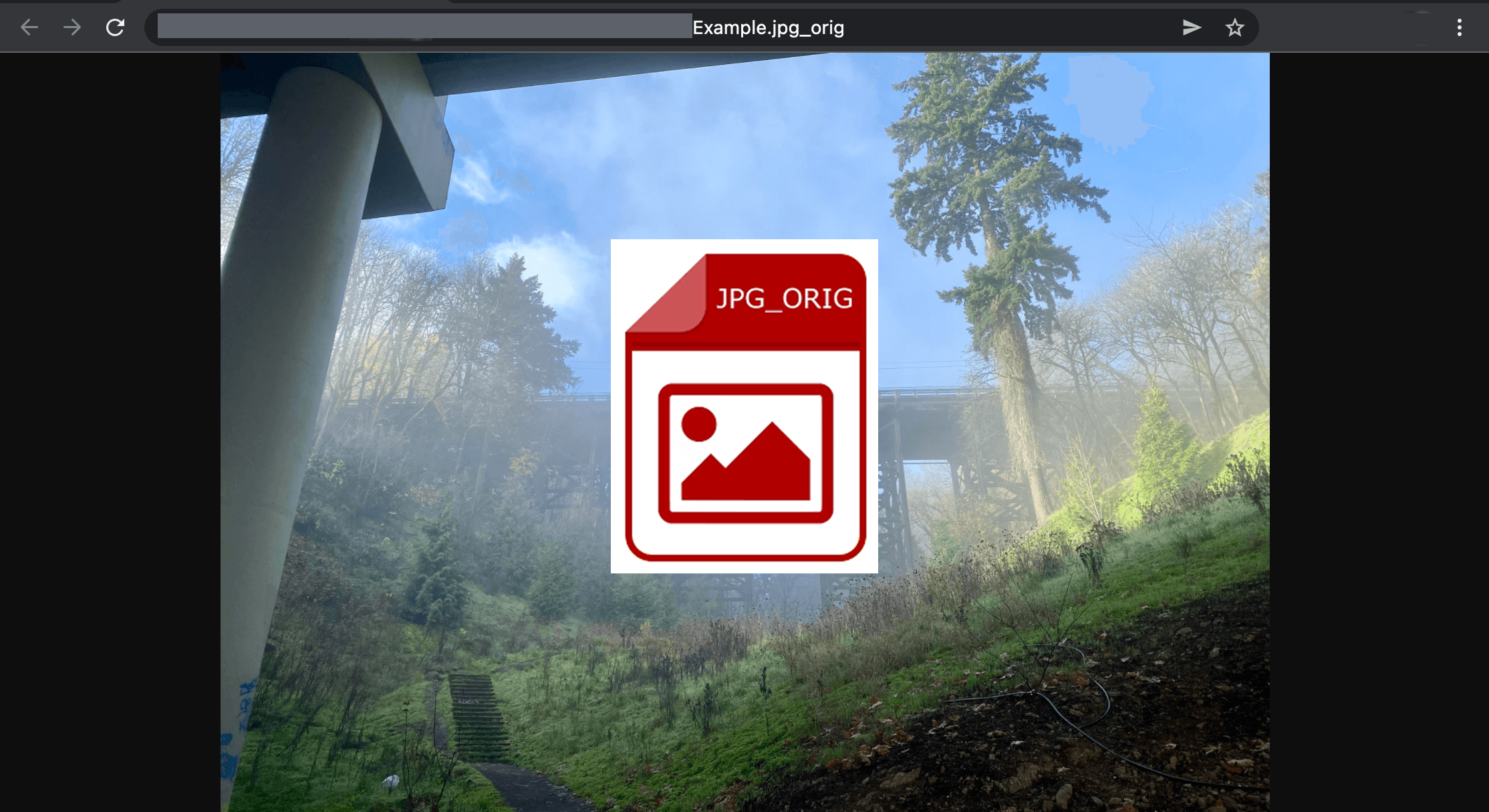
Key characteristics of .jpg_orig images:
They are standard JPG files—only the file name contains “_orig.”
They are usually uncompressed or lightly compressed, maintaining more detail.
They can be significantly larger than the default versions served to browsers.
They preserve more clarity for designers, researchers, and archivists.
In other words, the “orig” suffix is not a different format—it is simply a naming convention representing the best available quality.
2. How to Download .jpg_orig Images?
There are multiple ways to download .jpg_orig images depending on your preference and workflow.
Below are all major methods.
2.1 Manual Download .jpg_orig Images
Method A: Replace the URL Parameter
This is the most direct way to download .jpg_orig versions from Twitter/X.
- Right-click the image → Open image in new tab.
- Look for a URL ending with something like: name=large, then replace large with orig: name=orig
- Press Enter and reload the image, then right-click → Save image as…
Method B: Remove Query Strings
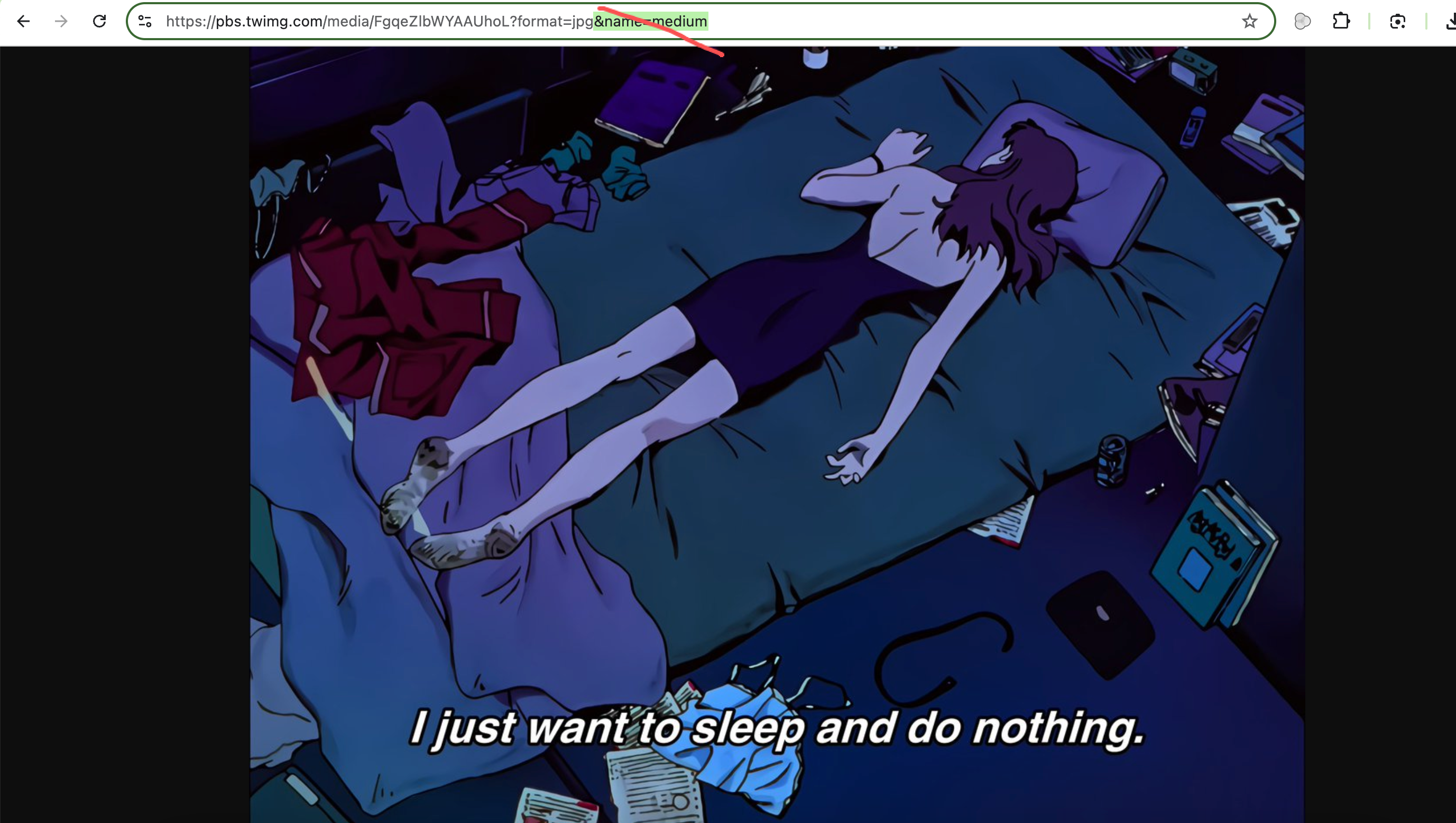
Some websites add resizing parameters such as: image.jpg?name=large&format=jpg
You can try removing everything after .jpg: image.jpg
This sometimes forces the server to display the original-quality version.
Limitations of Manual Methods:
- Only practical for one image at a time
- Doesn’t work well with galleries
- Takes time if downloading from multiple posts or profiles
- URLs may be protected or obfuscated on some platforms
2.2 Download .jpg_orig Images Using Browser Extensions
Extensions are a convenient middle ground—faster than manual downloads but easier than specialized tools.
Popular Image Downloader Extensions:
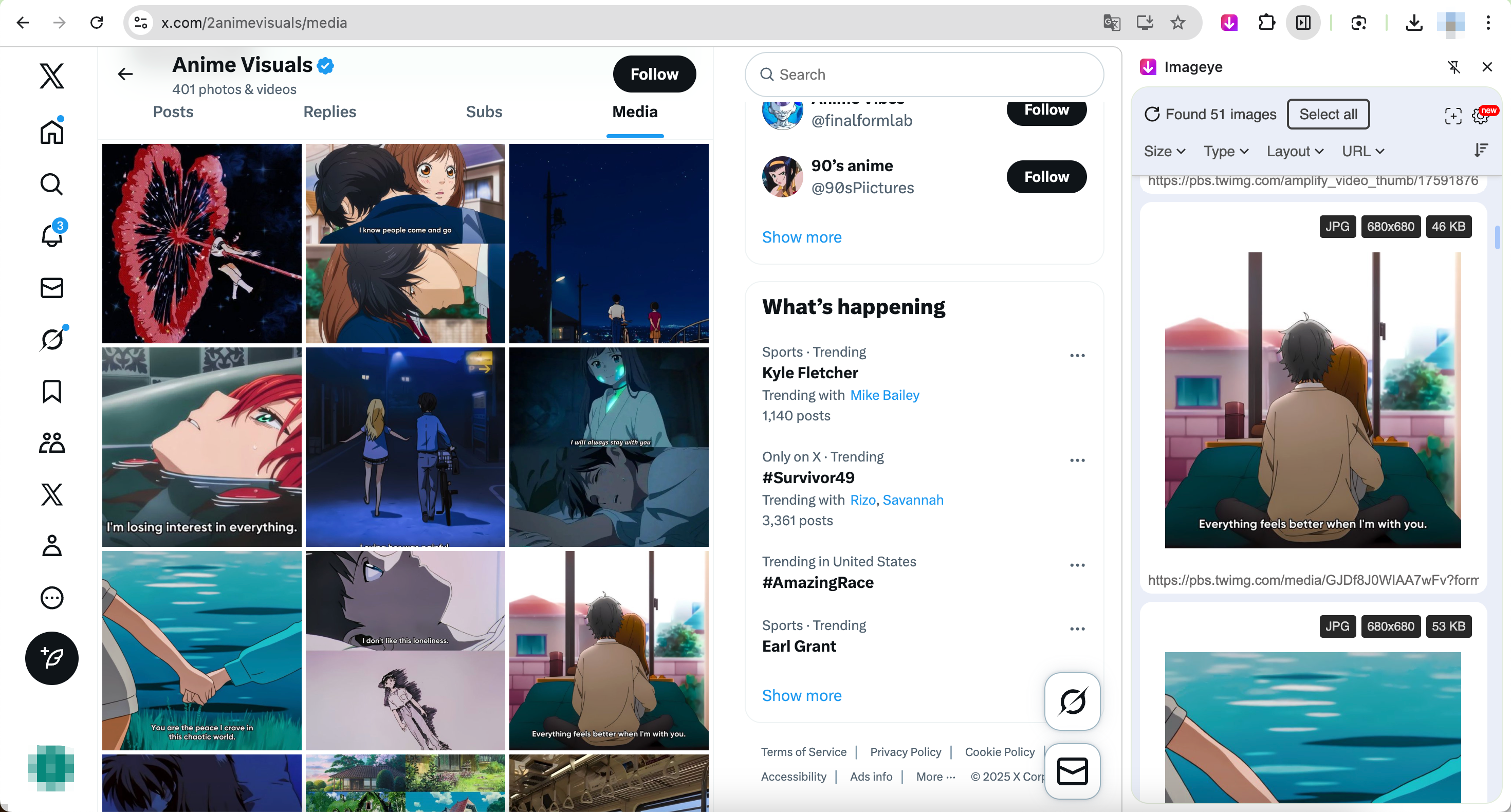
- Imageye – Image Downloader
- Download All Images
- Fatkun Batch Image Downloader
These extensions scan the page and list all images available for saving.
Pros:
- Good for grabbing multiple images at once
- Easy to use—no URL editing required
- Works on many websites, not just Twitter/X
Cons:
- May not detect the true “orig” file
- Sometimes downloads cached/resized versions
- Limited support for dynamic content (threads, galleries)
- Slow on large pages
3. Advanced Bulk Download .jpg_orig Images with Imaget
For users who frequently save a large number of images—or who specifically require .jpg_orig versions, Imaget is the ideal solution. It is a professional high-quality downloader capable of extracting original-resolution images from different platforms, including Twitter/X.
Key features of Imaget:
- Supports all image hosting webistes, including Twitter/X.
- Downloads hundreds or thousands of images in one batch.
- Extract both original images and thumbnails.
- Filter desired images by choosing types and resolutions.
- Save images into PNG/JPG/WebP or original formats.
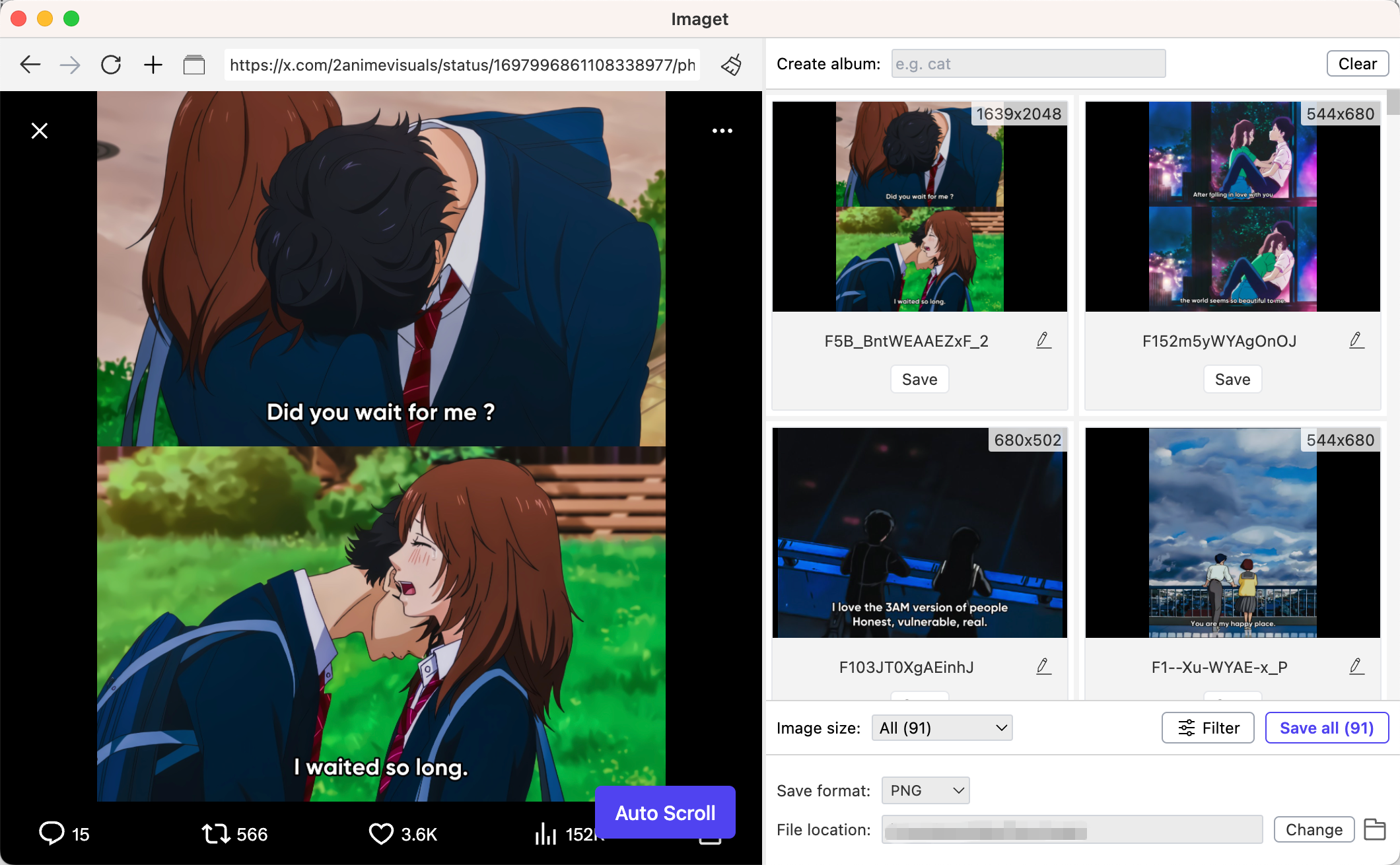
How to download .jpg_orig images in bulk with Imaget:
- Download and install Imaget, then open it on your Windows/Mac device.
- Use Imaget’s built-in browser to visit the Twitter page that you want to download images from.
- Make Imaget scroll the page to extract all available images, then filter target images by choosing resolutions.
- Click Save all button and Imaget will save all original images in the organized folder.
4. Bonus: Bulk Rename Images Using RenameKit
After downloading hundreds of images, filenames can be messy or inconsistent. RenameKit simplifies bulk renaming to make your collection organized and professional.
How to bulk rename image files with RenameKit:
- Install and open RenameKit, then import the downloaded image files.
- Use the filename and extension pattern to set desired new names to manage your files.
- Preview the output, then click Batch Rename to get the changes.
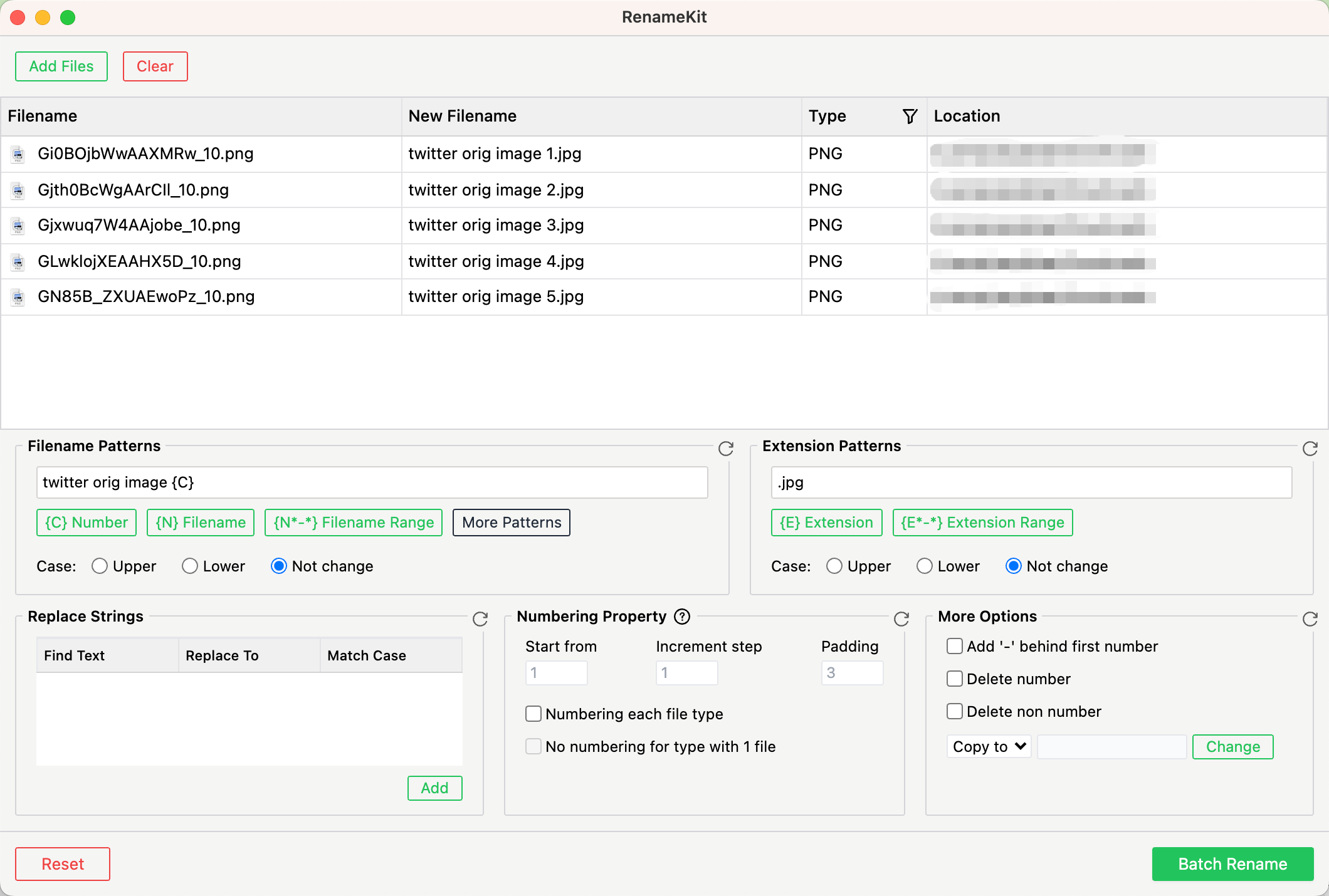
Within seconds, all your images will be renamed neatly.
5. Conclusion
Downloading .jpg_orig images manually or with extensions can be slow and unreliable, especially for bulk downloads. Imaget simplifies the process by automatically fetching the true original-resolution images from social platforms, including Twitter/X, and saving them in organized folders. For anyone who regularly needs high-quality images, Imaget provides the fastest, most reliable, and professional solution—especially when combined with RenameKit for quick bulk renaming.