How to Download Sora Images?

AI-generated visuals are reshaping the way creators produce images for blogs, marketing campaigns, social media, and design projects. With the rise of powerful text-to-image and text-to-video models like Sora, it’s now possible to generate cinematic-quality images in seconds—no camera, no studio, no design skills required.
But creating an image is only half the process. To actually use these visuals in real-world projects, you need to know how to download Sora images in the right format and resolution, without losing quality or violating usage rules. Whether you’re saving images for content creation, client work, or personal inspiration, understanding the proper download methods makes all the difference.
In this guide, we’ll show you the best ways to download Sora images safely and efficiently, explain how to get the highest-quality versions, and share practical tips for managing your downloaded images.
1. What Are Sora Images?
Sora is an advanced AI model designed to generate visual content based on text prompts. While it’s best known for text-to-video generation, Sora can also produce high-resolution still images that look cinematic, realistic, or stylized depending on your prompt.
Sora images are commonly used for:
- Blog headers and featured images
- Concept art and storyboarding
- Marketing visuals and ads
- Social media posts
- Design inspiration and mood boards
Because of their quality, many users want to save Sora images locally for editing, publishing, or archiving.
2. Download Sora Images Using the Built-In Download Option
The easiest and safest way to download Sora images is through the official download feature provided in the Sora interface.
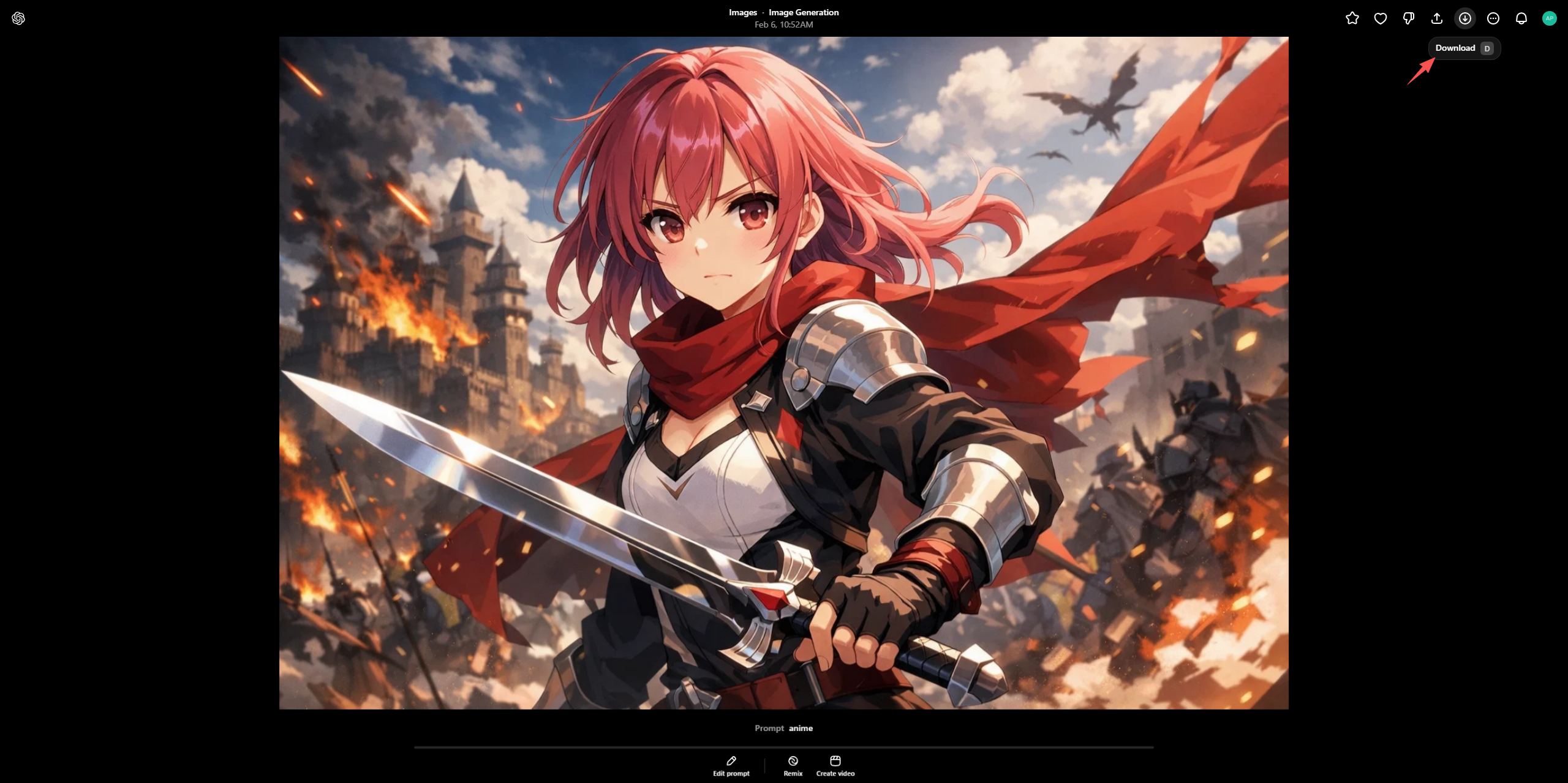
Steps to Download Sora Images Natively:
- Log in to your Sora account using your browser.
- Enter your text prompt and wait for Sora to generate the image.
- Click on the generated image to view it in full size.
- Click the download icon and the image will be saved to your device, usually in PNG or JPG format.
Pros:
- Official and reliable.
- Preserves original resolution.
- No quality loss.
Cons:
- Limited to one image at a time.
- Few format customization options.
3. Right-Click Save Image from Browser
If a direct download button isn’t available, you can still save Sora images directly from your browser.
How to Do It:
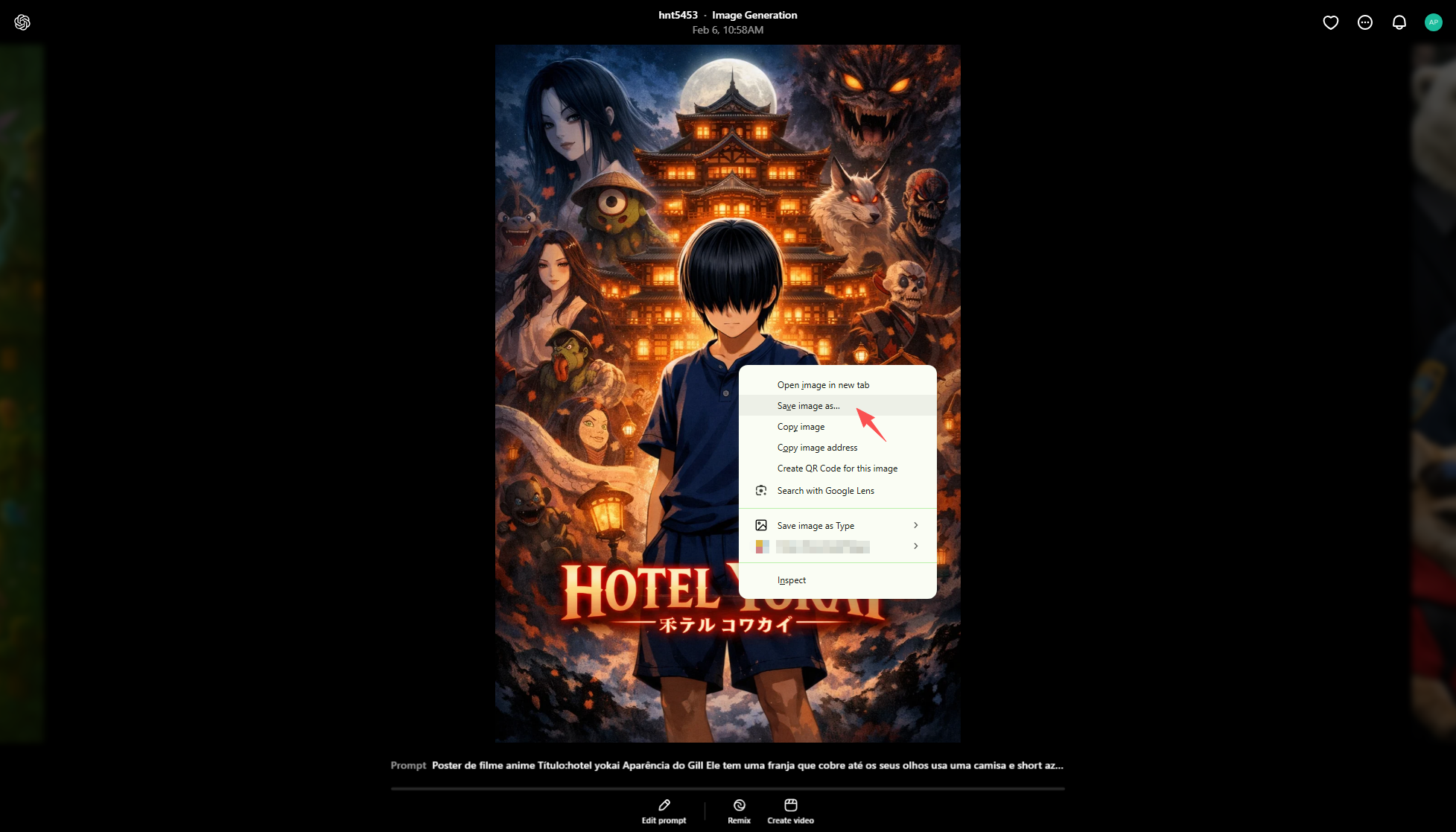
- Open the Sora image in full view and right-click on the image.
- Select “Save Image As…”, choose a destination folder and save the Sora image.
Things to Watch Out For
- Verify that the Sora image has finished loading to preserve full quality.
- Some browsers may save a lower-resolution preview instead of the original file.
- Always open the image in a new tab if possible for maximum quality.
4. Download Sora Images with Extensions
Browser extensions offer another way to download Sora images, especially when the platform limits direct downloads.
How Extensions Help:
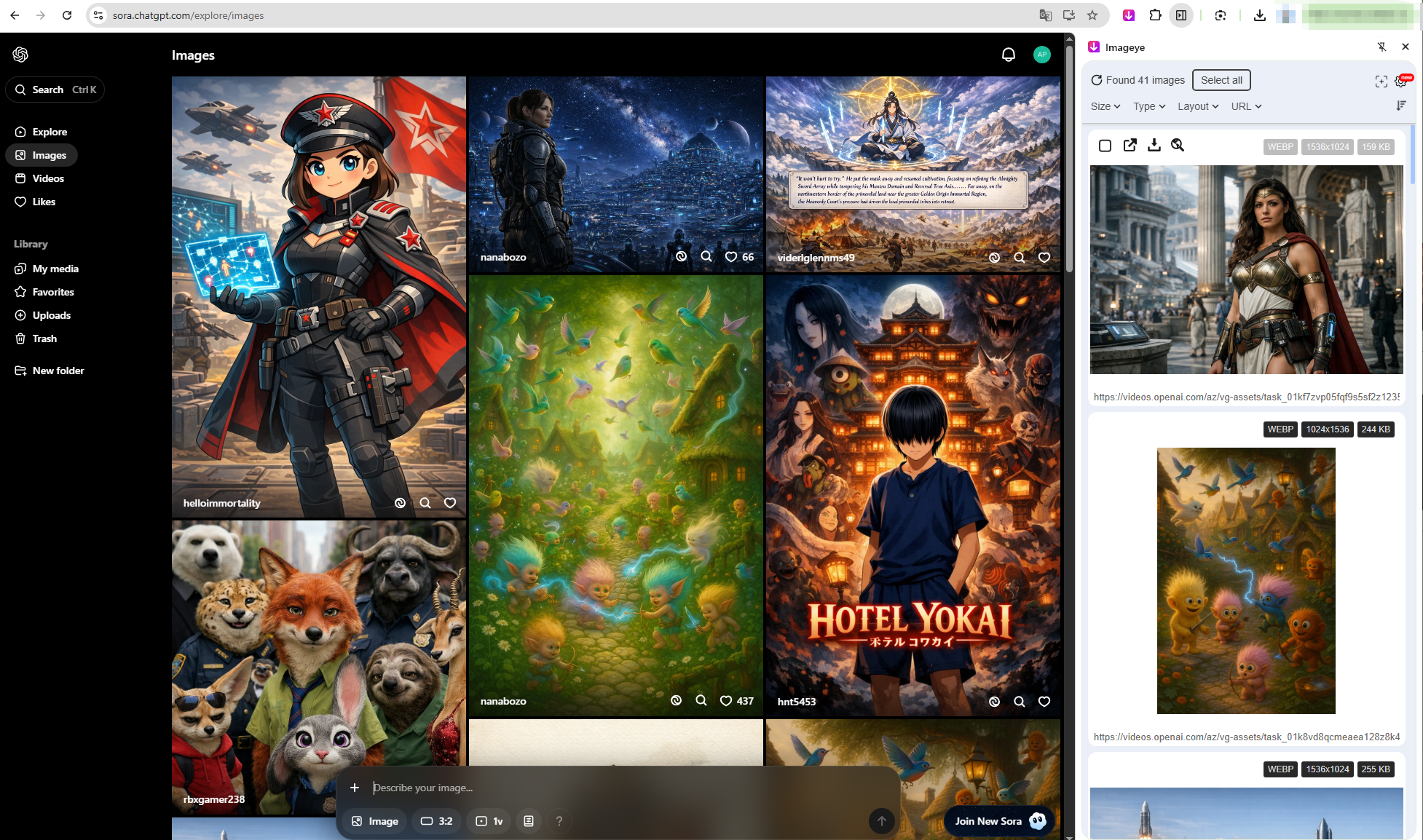
- Install a popular and reliable image downloader extension (e.g. Imageye) to your browser.
- Open the Sora images page and click the extension icon to detect files.
- Select desired Sora images and download then offline.
Pros:
- Faster than manual right-click saving.
- Can detect multiple images on a page.
- No need for external software.
Cons:
- May capture preview or compressed images.
- Can miss dynamically loaded assets.
- Not reliable for large-scale downloads.
5. Advanced Bulk Download Sora Images with Imaget
For users who generate or need to download large numbers of Sora images, manual methods quickly become inefficient. This is where Imaget stands out as a professional solution.
Imaget is a powerful bulk image downloader that extracts and saves full-resolution images directly from web pages. It’s ideal for creators, marketers, and designers who need to save AI-generated images efficiently.
Key Advantages of Imaget:
- Bulk download hundreds of images at once.
- Automatically detects original-resolution files.
- Filters out thumbnails and low-quality images.
- Custom folder organization and file naming.
- Saves significant time for large projects.
How to Bulk Download Sora Images with Imaget:
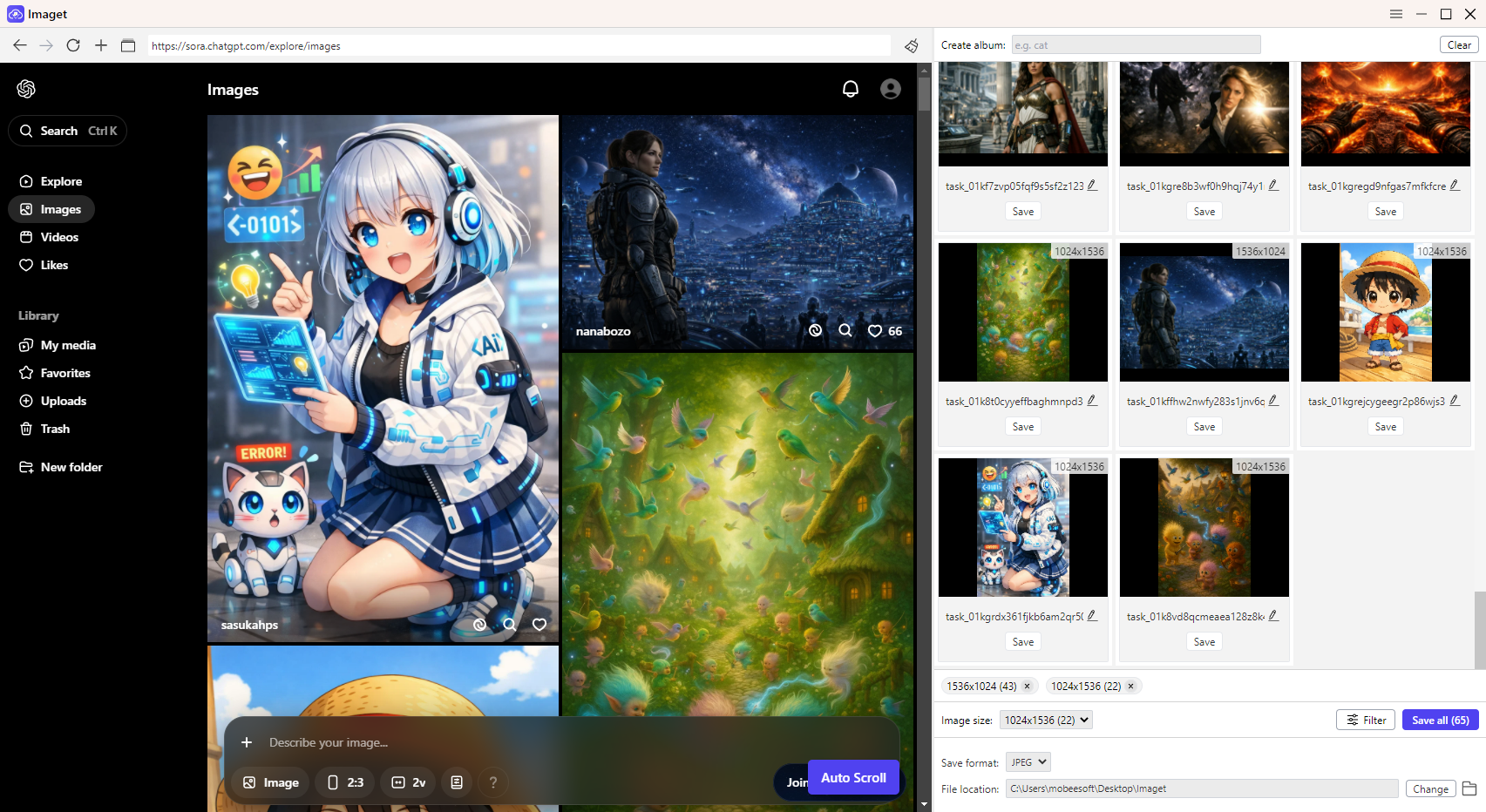
- Install and open Imaget on your Windows or Mac.
- Open the Sora page containing generated images inside Imaget.
- Let Imaget scan the page and detect all available images.
- Filter images by resolution, format, or size, then click Save All to save them in one batch.
6. Conclusion
Downloading Sora images can be simple or advanced, depending on your needs. The built-in download option and right-click saving work well for occasional use, while browser extensions offer extra flexibility for light multi-image downloads.
However, for users who regularly generate AI images or need to save multiple Sora images efficiently and in full quality, Imaget is the best solution. Its bulk downloading capabilities, smart filtering, and high-resolution detection make it the ideal tool for creators who want speed, organization, and professional results.
If you’re serious about working with Sora images at scale, Imaget is the tool that turns AI creativity into a streamlined, production-ready workflow.