How to Stop Google Photos from Backing Up?

Google Photos is incredibly convenient. It automatically backs up your pictures and videos to the cloud, syncs them across devices, and keeps memories safe even if your phone is lost. But that convenience comes with trade-offs. Many users eventually realize that Google Photos is constantly uploading their files, eating up cloud storage, using mobile data, or raising privacy concerns.
Whether you’re trying to save Google storage space, reduce background data usage, or simply regain control over where your photos are stored, stopping Google Photos from backing up is often the first step. The good news is that you can fully disable backups—and even better, switch to backing up your photos locally on your computer instead of relying on the cloud.
In this guide, we’ll walk through how to stop Google Photos from backing up on Android, iPhone, and desktop, and then show you a safer, faster alternative to back up photos directly on your computer.
1. How to Stop Google Photos from Backing Up?
Google Photos backup behavior depends on your device and settings. Below are the most effective ways to stop it completely.
1.1 Stop Google Photos Backup on Android
On Android, Google Photos is often enabled by default, so turning it off requires a few quick steps:
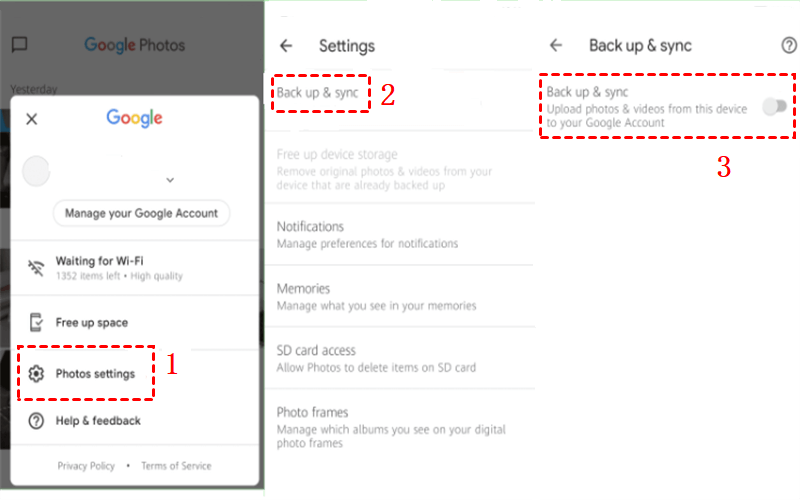
Open the Google Photos app > Tap your profile picture in the top-right corner > Select Photos settings > Tap Backup and toggle Backup off.

Once disabled, Google Photos will stop uploading any new photos or videos from your device.
Extra tip:
If you want more control instead of fully disabling backups:
- Go to Backup → Backup device folders
- Turn off folders like WhatsApp Images, Screenshots, or Downloads
This prevents unnecessary uploads while keeping important camera photos local.
1.2 Stop Google Photos Backup on iPhone (iOS)
On iPhones, Google Photos works separately from iCloud Photos and must be manually disabled:
Open Google Photos > Tap your profile icon > Go to Photos settings → Backup and turn Backup off.
To fully prevent background uploads:
Open Settings on your iPhone > Scroll to Google Photos > Disable Background App Refresh > Set Photos access to None or Selected Photos
This ensures Google Photos cannot scan or upload images silently.
1.3 Stop Google Photos Backup on Desktop
If you use Google Drive for desktop (formerly Backup and Sync), photos from your computer may also be uploading automatically.
To stop it:
Click the Google Drive icon in the system tray (Windows or macOS) > Open Settings > Go to My Computer or Folders from your computer > Remove photo folders or select Don’t sync with Google Drive > Apply changes.
This prevents photos from your computer from being pushed into Google Photos
1.4 What Happens After You Turn Backup Off?
Important things to know:
- Existing photos already backed up will remain in Google Photos.
- New photos will stay only on your device.
- Deleting photos from your phone will no longer affect cloud copies (and vice versa).
If you want to remove cloud copies, you must manually delete them from photos.google.com.
2. Bonus: Back Up Photos on Your Computer Instead of the Cloud (Using Imaget)
Turning off Google Photos backup is only half the solution. You still need a safe, reliable way to back up your photos—without cloud subscriptions, privacy concerns, or storage limits. This’s where Imaget comes in.
Why Back Up Photos Locally?
Backing up photos to your own computer gives you:
- Full control over your files
- No monthly storage fees
- Faster access to original-quality images
- Better privacy (no third-party cloud scanning)
Instead of trusting a cloud service, you own your backups.
What Is Imaget?
Imaget is a powerful bulk image downloader and photo backup tool designed for users who want fast, organized, local photo storage.
With Imaget, you can:
- Back up photos to your computer in full resolution
- Download images in bulk from supported platforms
- Organize images automatically by creating albums or renaming files
- Avoid compression, syncing errors, and cloud limits
It’s especially useful if you’re moving away from Google Photos and want a clean local archive.
How to Back Up Photos to Your Computer Using Imaget:
- Install Imaget on your Windows or Mac computer.
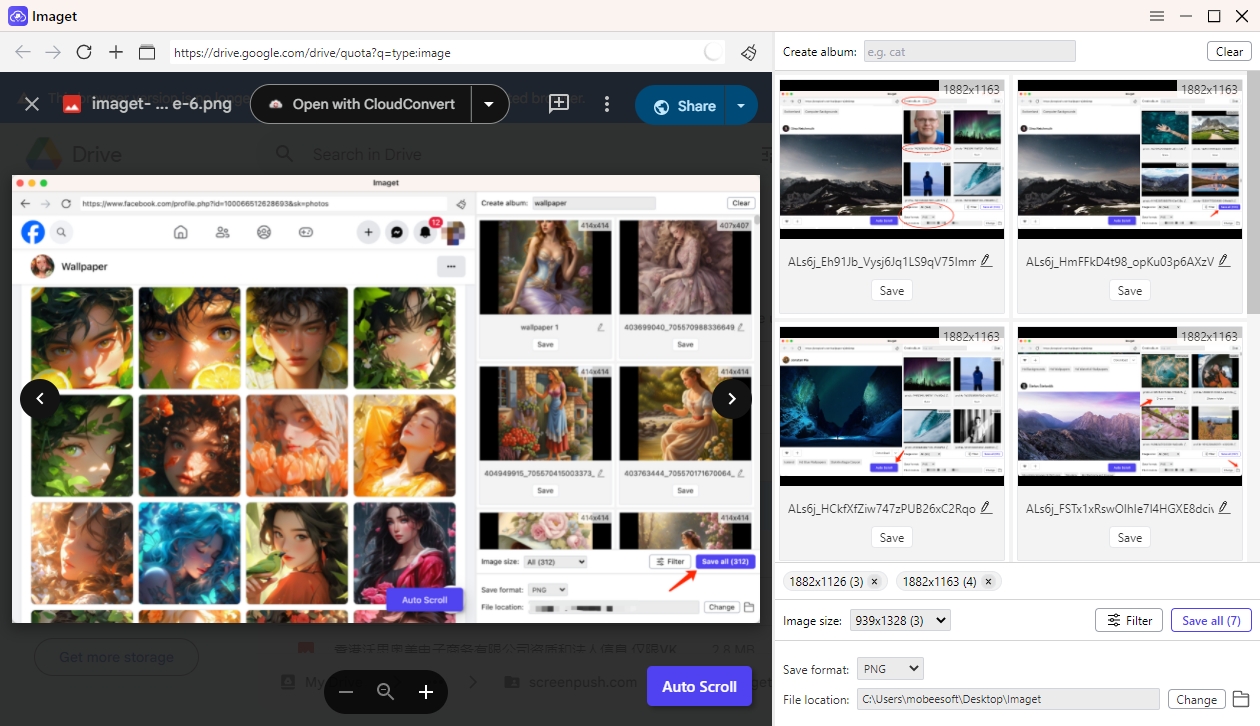
- Open the image source (albums, pages, or supported platforms) inside Imaget, then scroll the page to detect available images.
- Select the image quality and destination folder.
- Click Save all to save everything locally in one batch.
3. Conclusion
Google Photos is convenient, but it’s not for everyone. If you’re tired of automatic backups, storage warnings, or cloud dependency, turning off Google Photos backup is a smart move. Whether you’re on Android, iPhone, or desktop, disabling backups only takes a few minutes.
However, stopping cloud backup shouldn’t mean risking your memories. Backing up photos locally gives you true ownership—and Imaget makes that process fast, simple, and reliable.
If you want a powerful way to back up photos on your computer instead of the cloud, Imaget is the ideal solution. It keeps your images in full quality, organized, and always under your control—exactly where they belong.