Meet gallery-dl Coomer DDOS Guard? Try These Solutions

gallery-dl is widely used by advanced users for downloading images from a variety of websites. However, when gallery-dl is used with Coomer, many users quickly encounter failed downloads, access-denied messages, or unexpected errors. The most common reason behind these issues is DDOS Guard, a protection system implemented by Coomer to defend against abuse and automated traffic.
What makes this problem especially frustrating is that gallery-dl may work perfectly one day and completely fail the next, even with the same commands and settings. This inconsistency leaves many users searching for answers and alternatives.
In this article, we will explain what Coomer DDOS Guard is, why it interferes with gallery-dl, how you can try to fix gallery-dl Coomer DDOS Guard issues.

1. What Is Coomer DDOS Guard?
DDOS Guard is a web security service designed to protect websites from malicious traffic, including:
- Distributed denial-of-service (DDoS) attacks
- Automated scraping and mass downloading
- Excessive requests from non-browser clients
Coomer uses DDOS Guard to ensure server stability and prevent abuse. While this protection is effective from a security standpoint, it also blocks many legitimate automation tools.
2. Why gallery-dl Gets Blocked?
gallery-dl is a command-line downloader, not a full web browser. DDOS Guard detects this by analyzing several factors:
- Lack of JavaScript execution
- Non-standard request patterns
- Simplified HTTP headers
- Missing or invalid cookies
Because gallery-dl cannot pass JavaScript-based challenges, DDOS Guard often classifies it as a bot and restricts access.
Common signs of blocking include:
- 403 Forbidden errors
- “Access denied by DDOS Guard” messages
- HTML files downloaded instead of images
- Downloads stopping after a small number of files
These issues lead users to look for ways to “fix” gallery-dl when used with Coomer.
3. How to Fix gallery-dl Coomer DDOS Guard Issues?
There is no permanent bypass, but several temporary solutions may help.
3.1 Change VPN Server or Country
DDOS Guard applies different restrictions based on IP reputation and location. Switching VPN servers can sometimes help.
Users often report better results when using VPN servers in:
- Germany
- Netherlands
- France
- Switzerland
After changing your VPN, you typically need to re-verify Coomer in a browser and export new cookies.
3.2 Use Browser Cookies
One of the most common workarounds is exporting cookies from a browser session that has already passed the DDOS Guard check.
Steps:
- Open Coomer in Chrome or Firefox
- Complete the DDOS Guard verification
- Export cookies using a browser extension
- Load those cookies into gallery-dl
This allows gallery-dl to reuse a verified session. However, cookies can expire or become invalid quickly, requiring repeated exports.
3.3 Adjust User-Agent and Request Settings
Changing gallery-dl’s user-agent string to mimic a modern browser may slightly reduce detection. Increasing retry counts and timeouts can help with unstable connections, but these tweaks alone rarely solve DDOS Guard blocks.
3.4 Limitations of gallery-dl Fixes
Even when these methods work, they have clear disadvantages:
- Frequent manual steps
- Break easily when DDOS Guard rules change
- Not beginner-friendly
- Unreliable for large image collections
For many users, constantly fixing gallery-dl becomes more trouble than it is worth.
4. Try Imaget Bulk Image Downloader Instead of gallery-dl
If your main goal is downloading images in batches, Imaget is a strong alternative worth considering.
Key features of Imaget:
- Support all image hosting websites, including Coomer.
- Built-in browser to access private or protected images.
- Grab all images and GIFs from a webpage in just one click.
- Download images from multiple pages or tabs at the same time.
- Preview images and choose what to download by size or format.
- Download images in popular PNG/JPP/Webp or original formats.
- Smooth performance on both Windows and macOS.
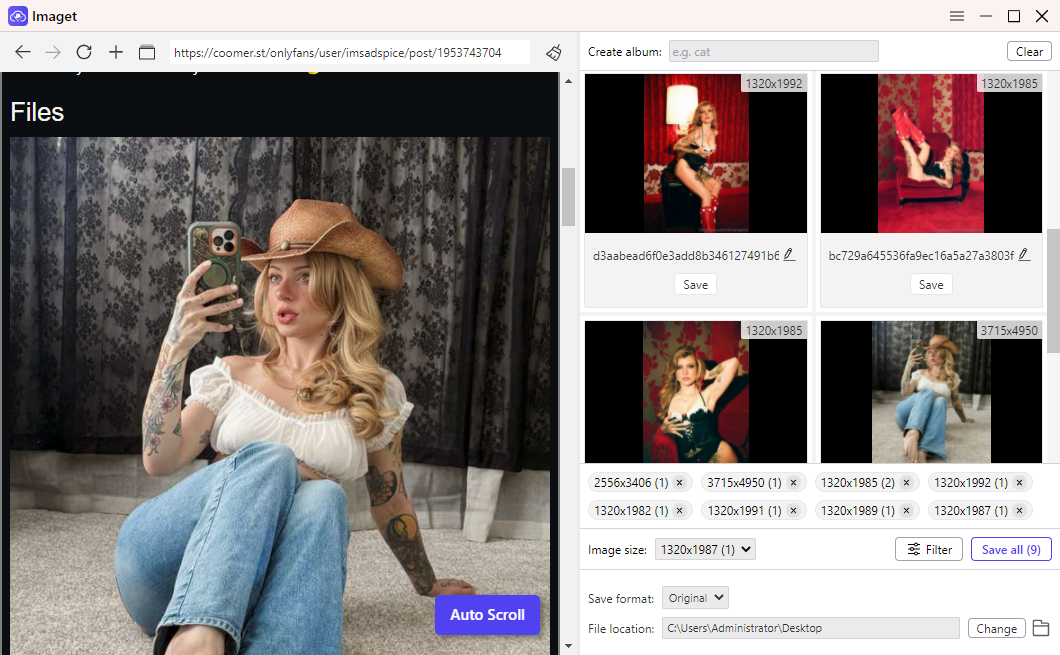
Steps: Download Images from Coomer Using Imaget
- Install Imaget Bulk Image Downloader and launch the application
- Open Coomer in Imaget’s browser, the locate the page that contains the images you want to download.
- Scroll the page to extract available images, then you can choose desired images and set download options (folders, file naming, output format).
- Click “Save all” and Image will download all the selected images from Coomer to your device in seconds.
5. Conclusion
Coomer’s DDOS Guard makes automated downloading difficult, and gallery-dl often struggles with blocked requests, failed downloads, and inconsistent behavior. While workarounds like VPN changes, cookie exporting, and user-agent tweaks may help temporarily, they require ongoing manual effort and are unreliable for large image collections.
For users focused on bulk image downloading, Imaget Bulk Image Downloader offers a simpler and more stable solution. With a built-in browser, automatic session handling, one-click image extraction, and an easy-to-use interface, Imaget avoids many of the issues caused by DDOS Guard.
If gallery-dl keeps failing on Coomer, Imaget is the more efficient and dependable choice for downloading images.