How to Download All Images from WordPress Media Library?

WordPress Media Library is a built-in feature that allows website owners to upload, manage, and organize images, videos, audio files, and other media. Over time, a WordPress website can accumulate hundreds or even thousands of images, making it difficult to manage or back up media files individually. Whether you are migrating your website, creating a local backup, organizing your image collection, or transferring media to another platform, downloading all images from your WordPress Media Library can save time and effort.
In this guide, we will explain different methods to download all images from WordPress Media Library and introduce an advanced solution for bulk image downloading.
1. How to Download All Images from WordPress Media Library?
Method 1: Download Images Manually from WordPress Media Library
The simplest approach is to access the Media Library through your WordPress dashboard and download images individually. This method is suitable if you only need a few pictures.
Steps:
- Log in to your WordPress admin dashboard.
- Navigate to Media > Library from the left-hand menu.
- Switch to List View or Grid View to browse your uploaded media files.
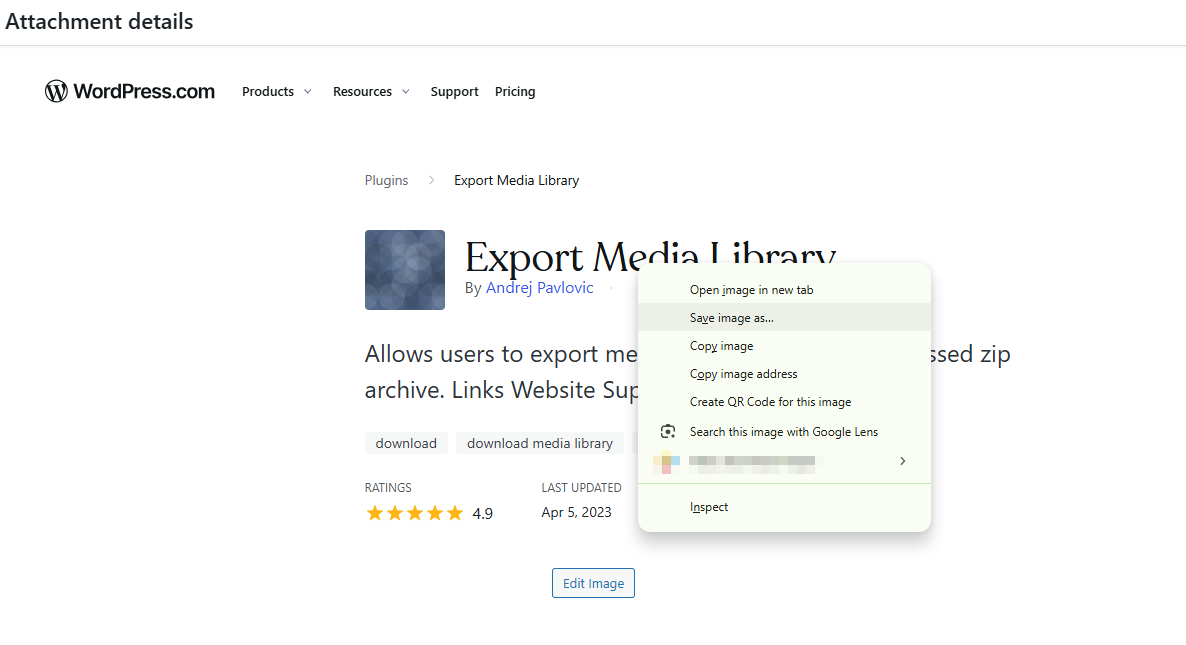
- Open the image, then right-click and select Save Image As to download it.
- Repeat these steps for other images you want to download.
Pros:
- No additional software or plugins required.
- Easy to use for downloading individual images.
- Allows you to select specific files.
Cons:
- Requires downloading images one by one.
- Time-consuming when dealing with large media libraries.
- Not suitable for backing up hundreds or thousands of images.
Method 2: Download All WordPress Images Using FTP
If you have FTP access to your WordPress hosting account, you can download images directly from the website’s upload directory. WordPress normally stores uploaded media in the wp-content/uploads folder, organized into year and month subfolders.
Steps:
- Download and install an FTP client such as FileZilla on your computer.
- Open the FTP client and enter your hosting FTP credentials, including the hostname, username, password, and port.
- Connect to your WordPress website.
- Navigate to the
public_html/wp-content/uploadsdirectory (the exact path may vary depending on your hosting configuration). - Open the uploads folder to view its subfolders, which are typically organized by year and month.
- Select the folders or images you want to download.
- Right-click the selected files and choose Download to save them to your local computer.

Pros:
- Supports downloading large numbers of images.
- Preserves the original directory structure.
- Does not require downloading images individually through the dashboard.
Cons:
- Requires FTP access and login credentials.
- Beginners may find the interface complicated.
- Downloading large media libraries can take considerable time.
- You need to understand the WordPress directory structure.
Method 3: Use a WordPress Export Plugin
Another option is to use a WordPress plugin that helps export media files or website content. Depending on the plugin, you may be able to package media files into an archive or export attachments for backup and migration.
Steps:
- Log in to your WordPress dashboard.
- Navigate to Plugins > Add New Plugin.
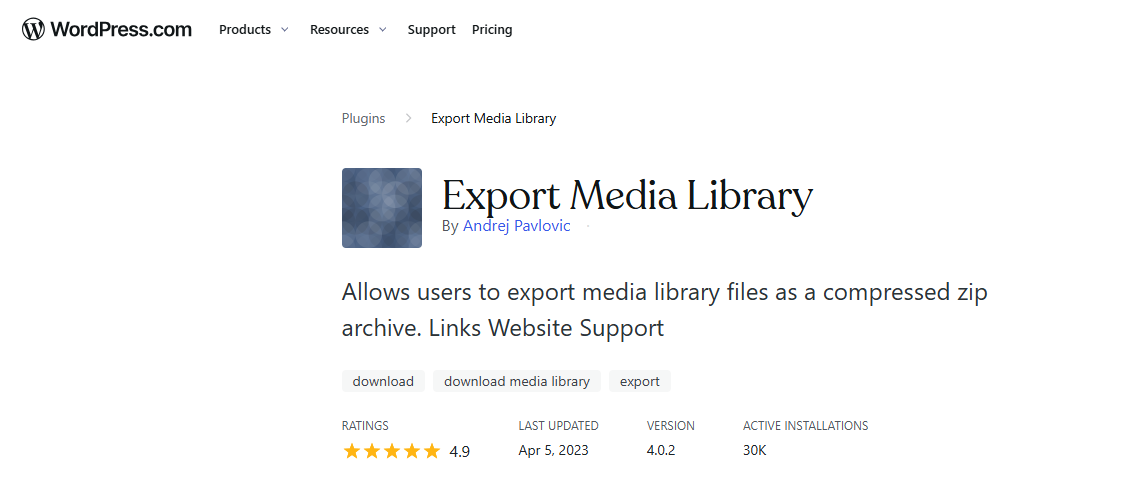
- Search for a suitable media export or backup plugin like Export Media Library, install and activate the plugin.
- Choose the media files or attachments you want to export.
- Start the export process and download the generated archive if supported.
Pros:
- Can simplify media export and backup.
- Some plugins support bulk operations.
- May preserve useful website information and media organization.
Cons:
- Features vary depending on the plugin.
- Some tools require paid plans for advanced export options.
- Large exports may consume considerable server resources.
- You may need to configure additional settings before exporting.
2. Advanced: Bulk Download All Images from WordPress Media Library Using Imaget
If you want a more convenient way to collect images in bulk, Imaget is an advanced bulk image downloader worth trying. Instead of downloading every image separately, Imaget helps you extract, preview, filter, and download multiple images from web pages in one operation.
Main Features of Imaget:
- Support all image hosting websites, including WordPress.
- Retrieve original or available image resolutions whenever supported by the source.
- Filter detected images by format, size, and other available criteria.
- Support common image formats such as JPG, JPEG, PNG, GIF, and WebP.
Steps to Bulk Download Images from WordPress Using Imaget:
- Download Imaget, and install it on your Windows or Mac computer.
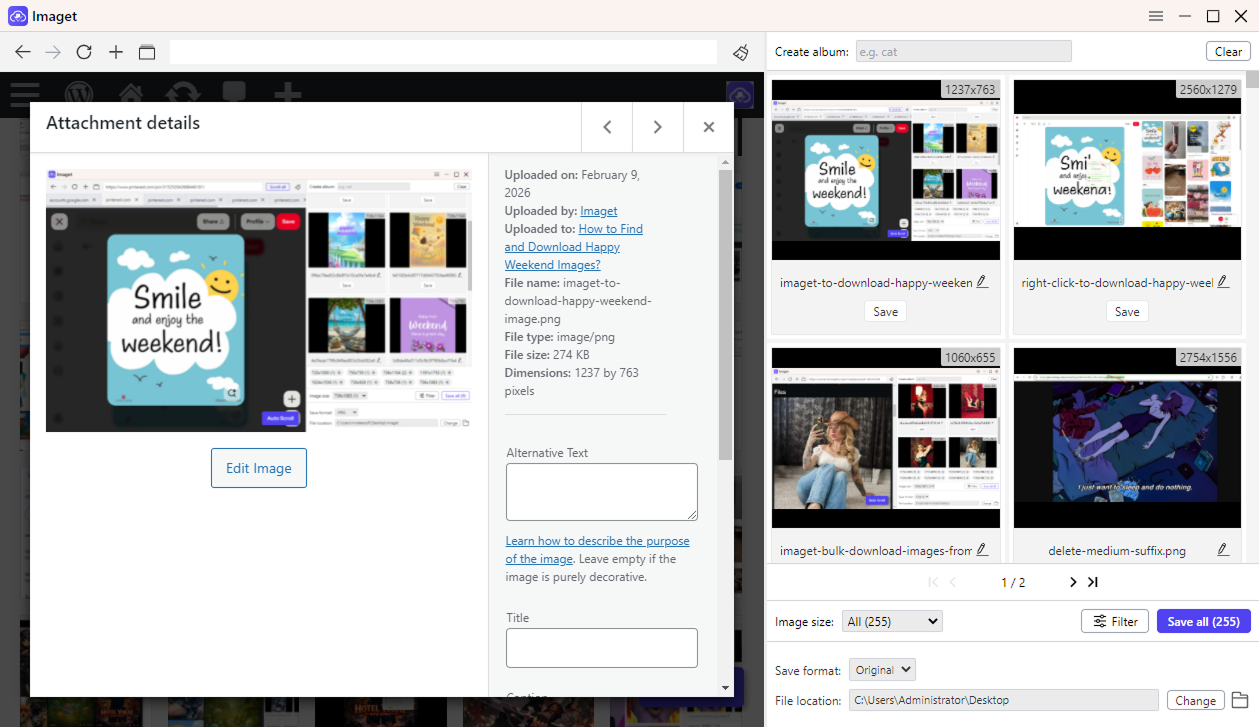
- Launch Imaget and enter the URL of your WordPress website in its built-in browser. Navigate to the page containing the images you want to collect.
- Allow Imaget to scan the webpage and automatically detect available images. You can also enable automatic scrolling if you need to load more images on a long page.
- Browse the detected images and use the available filtering options to select the images you need. You can filter by image format, size, or resolution where supported.
- Click the “Save all” button, Imaget will download the selected images and save them to your chosen folder.
3. Conclusion
Downloading all images from a WordPress Media Library can be challenging, especially when your website contains hundreds or thousands of media files. Manual downloading works well for a few pictures, FTP is useful for accessing the complete uploads directory, and WordPress export plugins can simplify certain backup tasks.
However, if you frequently need to collect images from WordPress webpages or other websites, Imaget is an excellent bulk image downloading solution to consider. With automatic image detection, previewing, filtering, and batch downloading features, it can significantly reduce the time and effort required to save multiple images. Download and try Imaget to make your image collection and management workflow faster and more convenient.
- How to Download Dreamstime Images Without Watermark?
- Best Poipiku Image Downloaders Compared: Features and Pros & Cons
- Why Can't I Download Images from Google Anymore?
- How to Download Images from Gelbooru: A Complete Guide
- Best Image Downloaders to Download Bato Manga in 2026
- How to Download Movie Screencaps from FilmGrab?
- How to Download Dreamstime Images Without Watermark?
- Best Poipiku Image Downloaders Compared: Features and Pros & Cons
- Why Can't I Download Images from Google Anymore?
- How to Download Images from Gelbooru: A Complete Guide
- Best Image Downloaders to Download Bato Manga in 2026
- How to Download Movie Screencaps from FilmGrab?