How to Download Movie Screencaps from FilmGrab?

Movie screencaps are useful for collecting memorable scenes, studying cinematography, creating mood boards, finding visual inspiration, and researching the work of directors and cinematographers. However, saving individual frames while watching movies can be inconvenient, especially when you need a large collection of images.
FilmGrab provides an easier way to find movie stills online. Instead of capturing frames yourself, you can browse collections of carefully selected images from different films and save the ones you need.
In this guide, we’ll introduce FilmGrab and explain four practical ways to download movie screencaps from the website.
1. What Is FilmGrab?
FilmGrab is an online archive of movie stills and screencaps. It allows users to browse images from a wide range of films and explore visual elements such as cinematography, composition, lighting, color, and production design.
You can search for a particular movie, open its image collection, and save individual screencaps for personal reference. FilmGrab is especially useful for movie enthusiasts, filmmakers, photographers, designers, and anyone looking for cinematic visual inspiration.
2. How to Download Movie Screencaps from FilmGrab?
There are several ways to download movie screencaps from FilmGrab. The right method depends mainly on how many images you need.
Method 1: Manually Save Movie Screencaps
The easiest method is to save images directly through your web browser. This is best when you only need a few screencaps.
Steps:
- Visit the FilmGrab website in your browser and search for the movie you want and open its FilmGrab page.
- Browse the available stills, click the image you want, and open the larger version if available for better quality.
- Right-click the movie screencap and choose Save Image As.
- Select where you want to store the screencap and click Save.
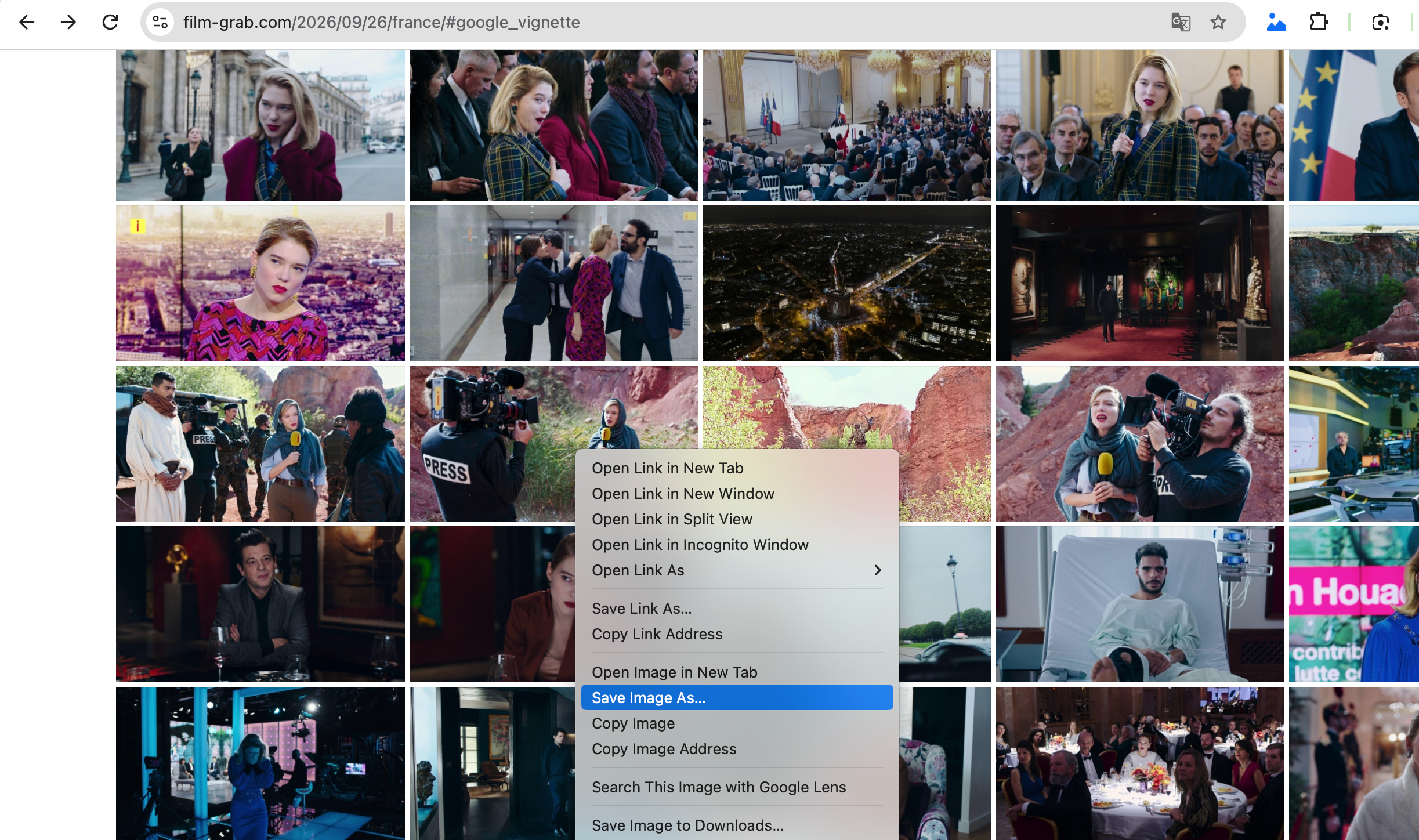
This approach is simple and doesn’t require additional software. However, manually saving images can become repetitive if you need dozens or hundreds of screencaps.
Method 2: Using Online Image Downloaders
Online image downloaders provide a browser-based way to extract images from webpages. They can be useful when you want to save multiple images without installing dedicated software.
Steps:
- Open the FilmGrab page containing the movie screencaps and copy the webpage URL from your browser.
- Open a reputable online image downloading tool like OnlineImageSaver and paste the FilmGrab URL into the downloader.
- Let the service scan the webpage for available images.
- Select the images you want to download, then start the download and save the images to your computer.
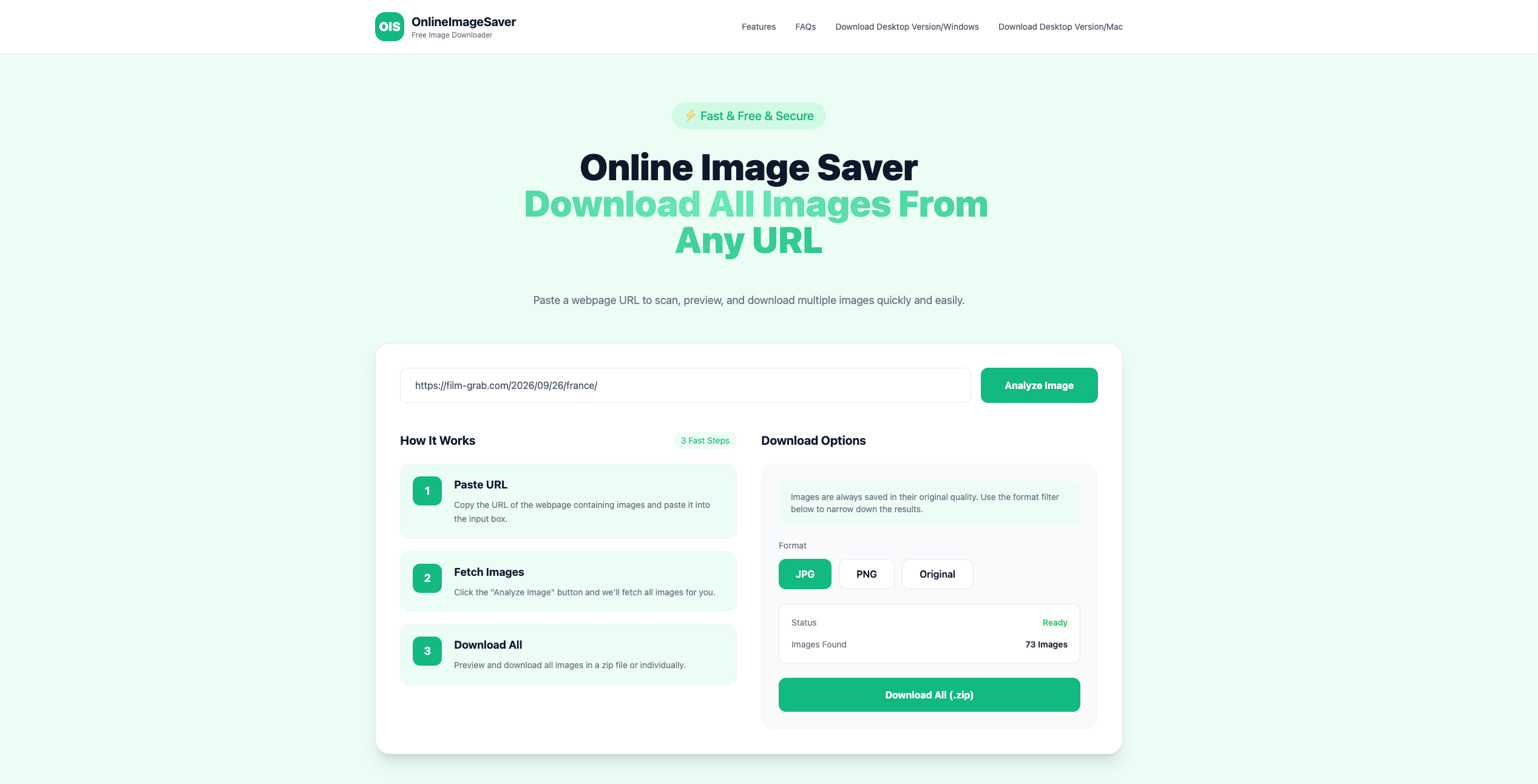
This method is convenient because it doesn’t require installation. However, online tools may have restrictions on the number of images you can download. Some may also have difficulty detecting images that load dynamically or are displayed through scripts.
Method 3: Using Image Downloader Extensions
Browser extensions can make it easier to detect and download images directly from FilmGrab. This option is useful if you regularly download images from webpages but don’t want to install a separate desktop application.
Steps:
- Search for a reputable image downloader extension like HImage and install the extension in your browser.
- Open the FilmGrab movie page containing the screencaps, then click the image downloader extension in your browser toolbar and allow it to scan the current webpage.
- Select the screencaps you want to save, then download the selected images to your computer.
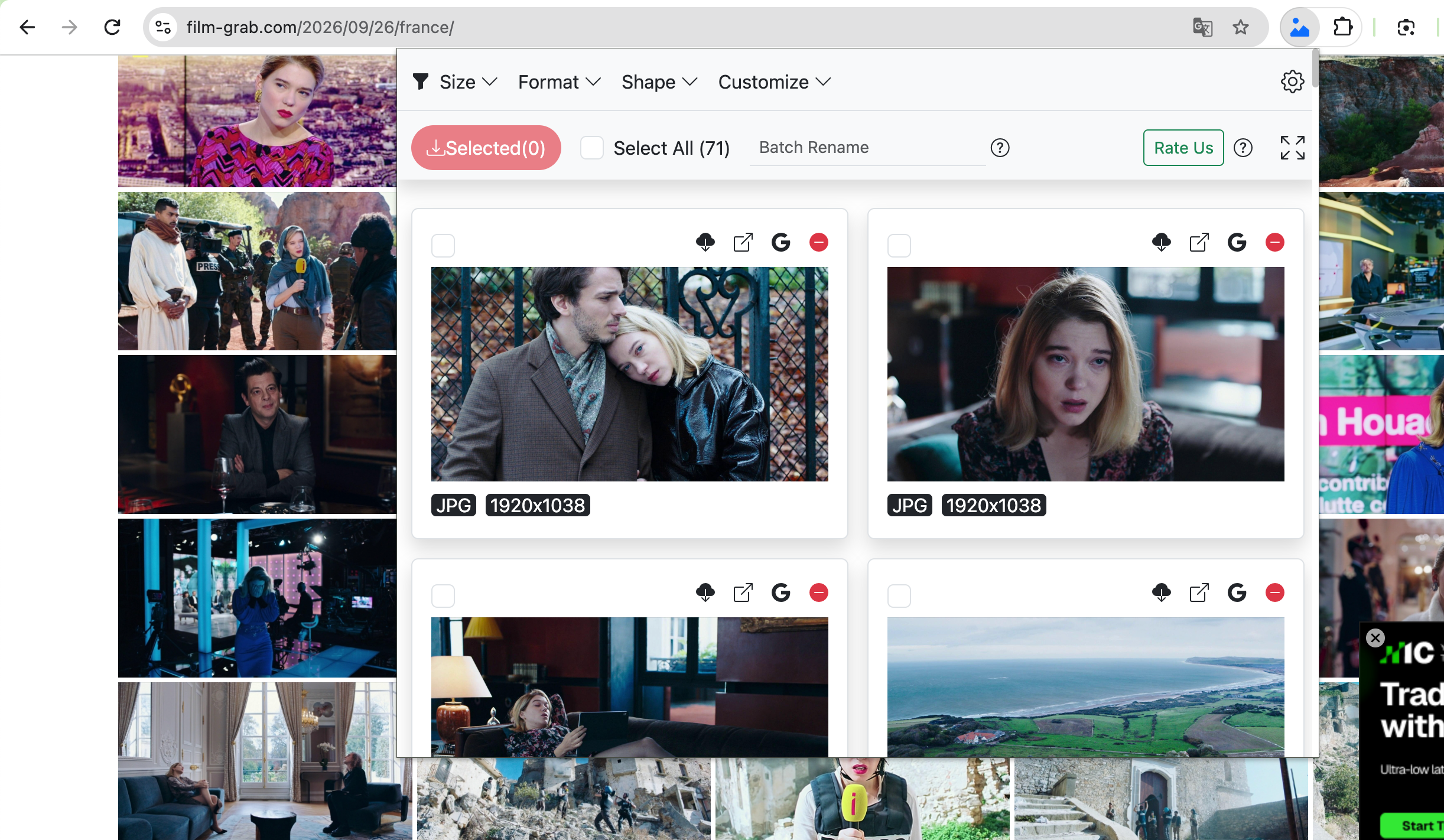
Some extensions can filter images by dimensions or file type, which can help you avoid downloading small thumbnails and unrelated webpage elements.
However, browser extensions may not work equally well with every FilmGrab page. You may also need to repeat the scanning process for different pages, which can be inconvenient when downloading a large collection.
Method 4: Advanced Bulk Download with Imaget
For users who need to download a large number of movie screencaps, Imaget offers a more efficient approach. It is a dedicated image downloader that can scan webpages, identify available images, and download multiple images at once.
How to download FilmGrab screencaps with Imaget:
- Install Imaget on your Windows or Mac computer and launch it.
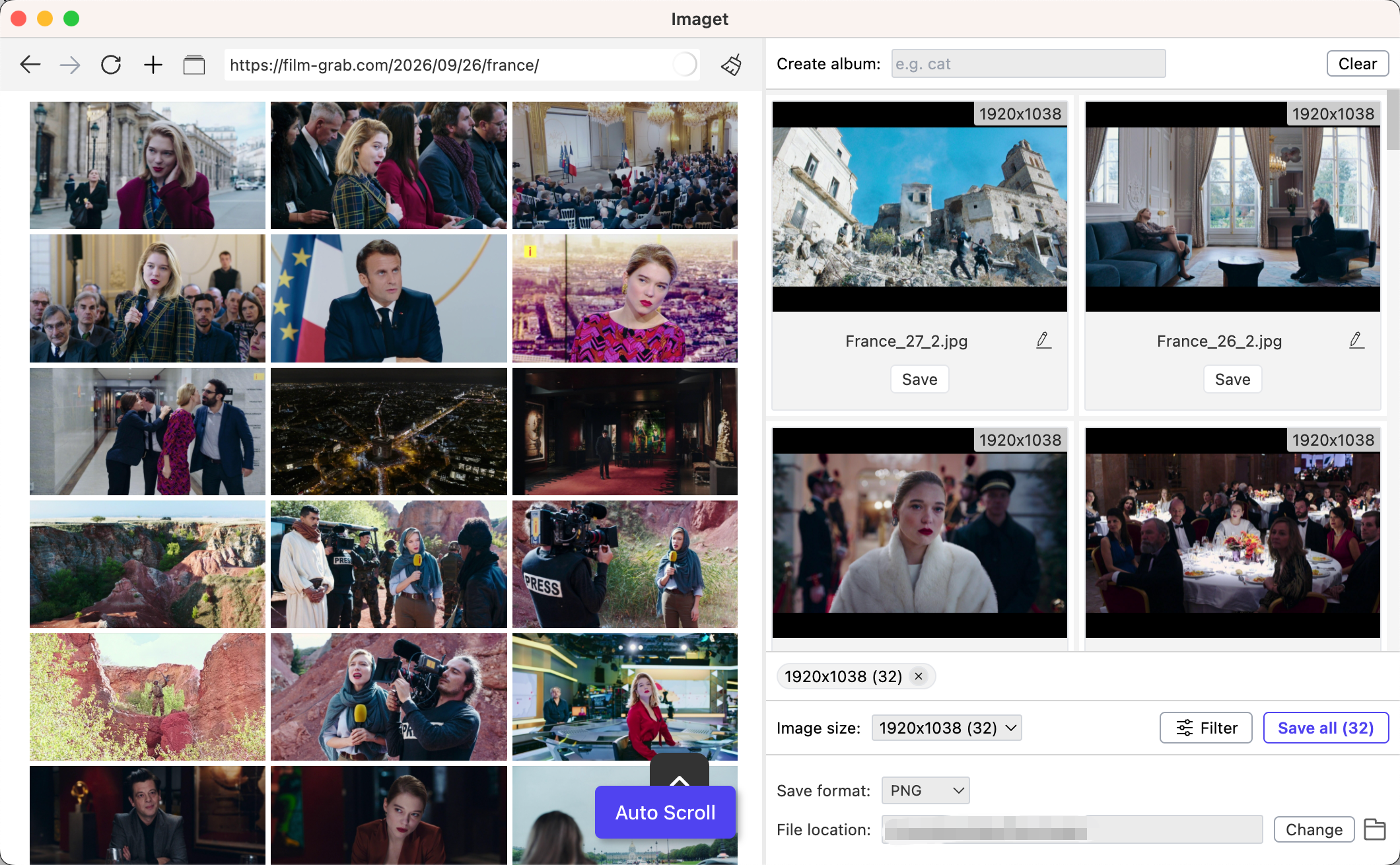
- Open the FilmGrab movie page inside Imaget, then scroll to let Imaget detect available images.
- Review the detected images and use available filtering options to choose the screencaps you need.
- Select the download folder, then click “Save all” to begin the bulk download and let Imaget save the selected images automatically.
3. Conclusion
FilmGrab is a convenient resource for discovering movie screencaps and exploring the visual style of different films. If you only need a few images, manually saving them is quick and straightforward. Online image downloaders and browser extensions can provide additional convenience when you need more images.
For larger collections, however, Imaget is the recommended option. Its ability to scan webpages, filter images, and download multiple files in bulk makes it much more convenient than saving screencaps one by one. Whether you’re creating a cinematic mood board, researching cinematography, or building a personal collection of movie stills, Imaget can help streamline the downloading process.
- Why Can't I Download Images from Google Anymore?
- How to Download Images from Gelbooru: A Complete Guide
- Best Image Downloaders to Download Bato Manga in 2026
- Bulk Image Downloader Chrome Extension Overview: How to Use It for Batch Downloads
- TurboImageHost Downloader Chrome: How to Download Images Easily
- How to Download Pictures from Wildskirts?
- Why Can't I Download Images from Google Anymore?
- How to Download Images from Gelbooru: A Complete Guide
- Best Image Downloaders to Download Bato Manga in 2026
- Bulk Image Downloader Chrome Extension Overview: How to Use It for Batch Downloads
- TurboImageHost Downloader Chrome: How to Download Images Easily
- How to Download Pictures from Wildskirts?