How to Use NeoDownloader to Bulk Download Images?

Saving a few pictures from a website is easy. However, downloading an entire gallery, album, or collection can quickly become tedious if you have to right-click and save every image individually. When a webpage contains dozens or hundreds of pictures, a bulk image downloader can automate the process and save considerable time.
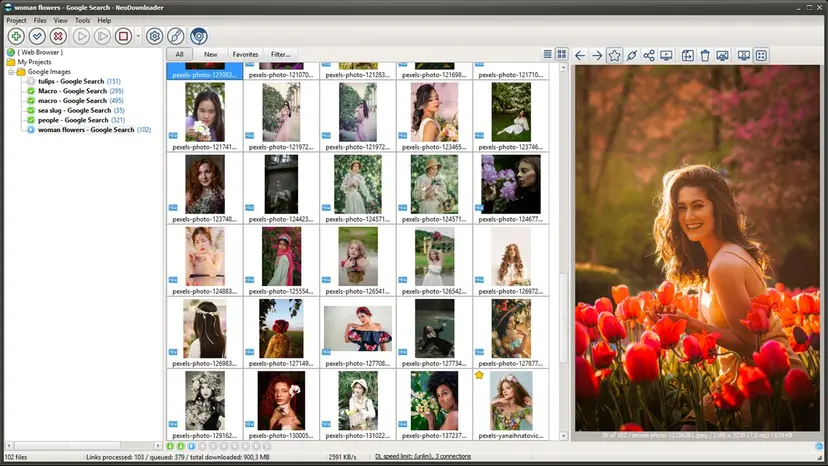
NeoDownloader is one tool designed for this purpose. It can crawl webpages, find images and other media, and download multiple files automatically. It also provides features such as filtering, project organization, a built-in browser, and multi-threaded downloads.
In this guide, we will explain what NeoDownloader is, how to use it to bulk download images, and compare its main advantages and disadvantages.
1. What Is NeoDownloader?
NeoDownloader is a Windows-based bulk image and media downloader that helps users save images, videos, and other files from websites in batches. Instead of downloading pictures one by one, users can add a webpage URL, let NeoDownloader crawl the page, and download the detected media automatically.
- Bulk downloading – Download multiple images and media files at once.
- Wide website support – Supports 1,500+ websites.
- Built-in browser – Browse and download content within the app.
- Smart filtering – Filter files by type, size, and resolution.
- Fast downloads – Supports multi-threaded downloading.
- Download management – Resume interrupted downloads and retry failed files.
- Project organization – Sort downloads with custom folders and naming rules.
- Media viewer – Preview downloaded images and other supported media.
2. How to Use NeoDownloader to Bulk Download Images
The basic process of using NeoDownloader only takes a few steps:
Step 1: Install NeoDownloader
Download and install NeoDownloader on your Windows computer, then launch the program.
Step 2: Add a Webpage URL
Find the gallery or webpage containing the images you want to save. Drag the webpage link into NeoDownloader’s floating basket, or paste the URL directly into the application.
Step 3: Let It Crawl the Page
NeoDownloader automatically analyzes the webpage and searches for available media files. It can identify images and other downloadable content without requiring you to save each file manually.
Step 4: Filter the Results
Use the filtering options to narrow the results by file type, image size, resolution, or custom patterns. This helps exclude thumbnails, icons, and other unwanted files.
Step 5: Start the Download
Select the images you need and start the download. NeoDownloader can download multiple files simultaneously, with up to 20 connections according to its website.
Step 6: Check Your Files
Once the download is complete, open the destination folder and review your images. You can organize downloads into projects and custom folders for easier management.
3. Pros and Cons of NeoDownloader
Pros:
- Bulk downloading: Save multiple images at once.
- Wide support: Works with 1,500+ websites.
- Built-in browser: Browse and download in one place.
- Smart filtering: Filter by type, size, or resolution.
- Fast downloads: Supports up to 20 connections.
- Resume & retry: Recover interrupted downloads.
- Project organization: Manage files with custom folders and names.
- Free version: Unlimited projects, up to 100 files per project.
Cons:
- Windows only: Users on macOS or other operating systems cannot use it natively.
- Free-version limit: The 100-file-per-project restriction can be inconvenient for very large collections.
- Learning curve: Advanced filtering and project features may take some time to understand.
- Website compatibility varies: Dynamic or heavily protected websites may not always behave as expected.
- More than an image downloader: Its many media and project-management features may feel unnecessary if you only need a simple picture downloader.
4. Try the Ultimate Batch Picture Downloader — Imaget Instead of NeoDownloader
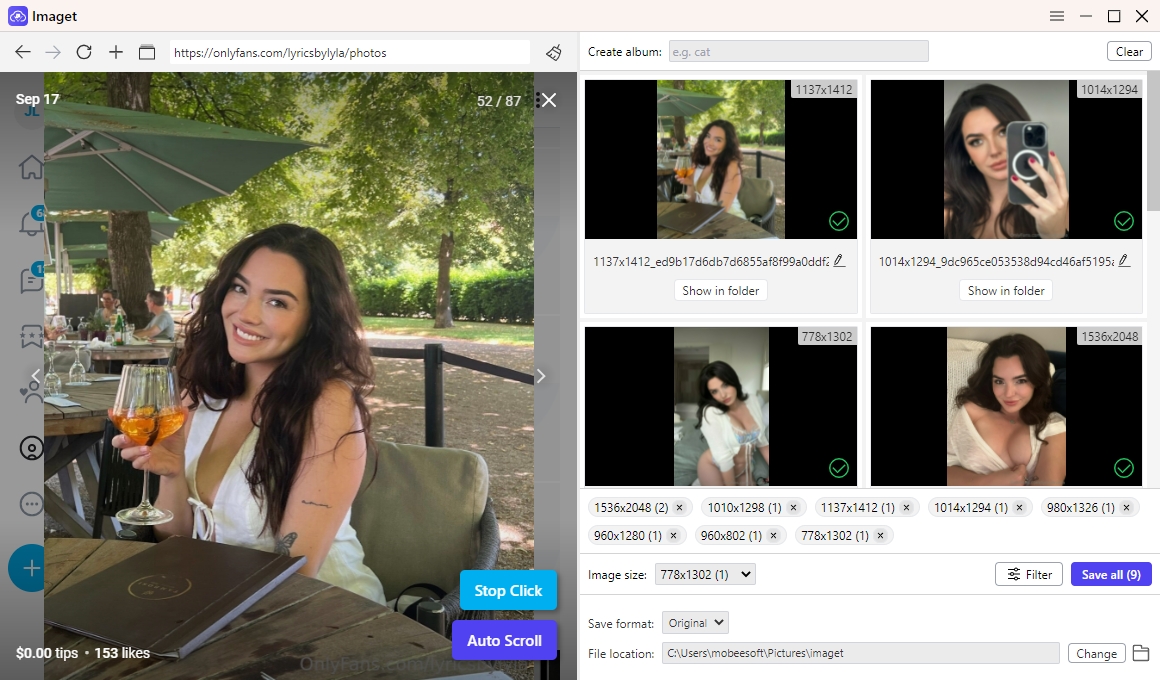
If you want a more image-focused solution with a straightforward workflow, Imaget is a NeoDownloader alternative worth trying. It is designed specifically for downloading large numbers of images from webpages and online galleries, helping users avoid the repetitive process of saving pictures one by one.
Main Features of Imaget:
- Bulk image downloading: Download thousands of pictures simultaneously from all websites.
- Auto-scroll detection: Detect original quality images loaded as you scroll through supported webpages.
- Built-in browser: Browse and download from the same application.
- Image filtering: Narrow results based on factors such as size or file type.
- Format Support: Download images in original or other popular formats.
How to Bulk Download Images with Imaget:
- Get the Imaget Windows or Mac version, install and run it on your device.
- Open the target website or image gallery using Imaget’s built-in browser, then let Imaget scan the webpage and detect available images.
- Apply filters to remove unwanted images and select the pictures you want.
- Choose your output folder and configure the available download settings.
- Start the batch download by clicking the “Save all” button and let Imaget save the selected images automatically.
5. Conclusion
NeoDownloader is a useful option for bulk downloading images, offering features such as wide website support, smart filtering, built-in browsing, and multi-threaded downloads. However, its Windows-only availability, project file limits, and learning curve may not suit everyone, especially users who want a simpler and more image-focused solution.
For a more streamlined experience, Imaget is a powerful alternative worth trying. With support for bulk image downloading, auto-scroll detection, original-quality downloads, image filtering, multiple formats, and a built-in browser, Imaget makes it easy to collect large numbers of images with minimal effort. Simply open a webpage, let Imaget detect the images, apply your preferred filters, and click “Save All” to download them in batches.
If you frequently download images from galleries, webpages, or online collections, Imaget can be a convenient and efficient choice for replacing NeoDownloader and simplifying your batch image downloading workflow.
- Best Image Downloaders to Download Bato Manga in 2026
- How to Download Movie Screencaps from FilmGrab?
- Bulk Image Downloader Chrome Extension Overview: How to Use It for Batch Downloads
- TurboImageHost Downloader Chrome: How to Download Images Easily
- How to Download Pictures from Wildskirts?
- How to Rip Assets from Websites: 5 Easy Methods
- Best Image Downloaders to Download Bato Manga in 2026
- How to Download Movie Screencaps from FilmGrab?
- Bulk Image Downloader Chrome Extension Overview: How to Use It for Batch Downloads
- TurboImageHost Downloader Chrome: How to Download Images Easily
- How to Download Pictures from Wildskirts?
- How to Rip Assets from Websites: 5 Easy Methods
- How to Download Images from Danbooru?